

Adblock Plus remains a familiar name in advertisement blocking. However, its default settings might not suit everyone. Some users prefer stricter blocking without Acceptable Ads. Others might need better privacy or wider device coverage.
Fortunately, there are several free alternatives that offer different approaches. Some work as browser extensions, while others use DNS. A few even include protection directly inside browsers. So, you aren’t limited to traditional extensions.
But choosing the right one still requires some thought due to different circumstances. For example, Chrome users face different restrictions than Firefox users.
Likewise, Android users need different protection methods. We compared 12 alternatives across these requirements. This guide covers their features, compatibility, limitations, and free offerings.
TL;DR: uBlock Origin is a strong Firefox choice. Chrome users can consider uBlock Origin Lite. AdGuard offers balanced browser protection, while Ghostery prioritises tracking visibility. And for Android, users can consider AdAway for broader filtering.
Key Findings:
The best alternative depends on your browser and requirements. So you don’t necessarily need another browser extension.
Built-in browser protection or DNS filtering may work better in many cases.
Here’s a quick table that could help you find the best one for yourself:
| Your requirement | Recommended | Main reason |
|---|---|---|
| Advanced Firefox advertisement blocking | uBlock Origin | Extensive filtering controls |
| Free Chrome advertisement blocking | uBlock Origin Lite | Designed for Manifest V3 |
| Everyday browser protection | AdGuard | Balanced advertisement and tracker filtering |
| Advertisement and tracker visibility | Ghostery | Privacy-focused interface |
| Simple advertisement blocking | AdBlock | Beginner-friendly controls |
| No predefined Acceptable Ads whitelist | AdBlocker Ultimate | No approved-ad exceptions |
| Additional browser security | Malwarebytes Browser Guard | Free ad, tracker, and scam protection |
| Built-in browser protection | Brave Shields | No separate extension required |
| Simple built-in advertisement blocking | Opera Ad Blocker | Integrated browser functionality |
| Android system-wide filtering | AdAway | Root and non-root filtering |
| Free public DNS blocking | AdGuard Public DNS | Filters advertising domains |
| Customisable DNS protection | NextDNS | Configurable lists and device settings |
Our main finding: Browser compatibility should come first when looking for an ad blocker. Chrome users need Manifest V3-compatible extensions. Whereas Firefox users retain access to full uBlock Origin. And DNS services suit broader domain-level filtering.
Why Are People Looking for Adblock Plus Alternatives?
Here’s the question you might want to ask: What do people look for in alternatives?
Well, most users switch because of advertisements, compatibility, or privacy. However, these problems don’t always require the same solution. Understanding your reason makes choosing much easier.
Acceptable Ads Can Allow Certain Advertisements
Adblock Plus participates in the Acceptable Ads programme. This programme allows qualifying advertisements that meet specific requirements. These advertisements should remain relatively small and unobtrusive.
However, some users prefer blocking detectable advertisements altogether. Acceptable Ads is enabled by default in Adblock Plus. You can disable it through the extension settings. So, switching might not always be necessary.
The same consideration applies to AdBlock. It also supports Acceptable Ads by default. Users can opt out through its settings. Therefore, check this before choosing it as a stricter replacement.
What you can do:
- Open your Adblock Plus extension.
- Select its settings or preferences.
- Find the Acceptable Ads section.
- Disable the option allowing acceptable advertisements.
- Reload your regular websites.
When switching makes sense: You may prefer a blocker without this programme. AdBlocker Ultimate, for example, states that it has no predefined advertising whitelist. You can review the Acceptable Ads programme’s requirements before deciding.
Chrome’s Manifest V2 Changes Have Affected Ad Blockers
Chrome has changed its browser extension architecture. Google has gradually moved extensions towards Manifest V3. As a result, traditional advertisement blockers face compatibility restrictions.
An important milestone arrived on August 31, 2026. Google’s official timeline confirms that remaining Manifest V2 extensions left its Web Store. Existing installations on Chrome 138 or earlier can continue running. However, they can’t receive updates or reinstallations.
This change particularly affects full uBlock Origin. Its regular Chrome Web Store distribution has ended. However, uBlock Origin Lite supports Manifest V3.
Other browsers have different transition arrangements. So, Edge users should check their extension compatibility. You can review Google’s official Manifest V2 timeline for the exact details.
What this means for users:
- Full uBlock Origin remains suitable for Firefox.
- uBlock Origin Lite suits modern Chrome installations.
- AdGuard provides a Manifest V3-compatible Chrome extension.
- Edge users should check current extension versions.
- Safari users need compatible Apple platform products.
Advertisement Blocking and Privacy Protection Are Different
An advertisement blocker doesn’t necessarily block every tracker. Some extensions focus on advertising requests. Others concentrate on tracking scripts and unwanted connections.
For example, Ghostery combines advertisement blocking with tracker visibility. Malwarebytes Browser Guard adds website security features. Privacy Badger concentrates more heavily on tracking prevention.
These differences matter when selecting a replacement. You may need both advertisement and tracker protection. However, installing several overlapping extensions can create conflicts.
Browser Extensions Cannot Protect Every Application
A Chrome extension generally protects Chrome browsing activity. It doesn’t automatically cover every installed application. Firefox and Edge extensions have similar restrictions.
Android offers additional filtering methods. AdAway can filter requests beyond one browser. DNS services can also cover configured devices. However, each method has different limitations.
Why Ad Blocking Matters: What the Statistics Tell Us
Ad blocking isn’t a niche browsing preference anymore. DataReportal’s October 2025 Digital 2026 report highlights widespread adoption. Its underlying survey also explains why users install blockers.
According to GWI’s Q2 2025 survey:
| Statistic | Reported figure |
|---|---|
| Global internet users aged 16+ using ad blockers | 29.5% |
| Indian internet users aged 16+ using ad blockers | 24.5% |
| Users citing too many advertisements | 63.5% |
| Users citing advertisements obstructing content | 53.5% |
| Users citing privacy concerns | 42.4% |
| Users citing irrelevant advertisements | 39.8% |
| Users citing improved device performance | 31.7% |
Source: Digital 2026 Global Overview Report, pages 671–673, based on GWI Q2 2025 survey data.
These figures need one important distinction. The first two measure ad-blocking usage among internet users. The remaining figures describe motivations among existing ad-blocker users.
What does this mean for readers? Too many advertisements remain the leading complaint. However, privacy and usability also matter. That’s why a good comparison should cover more than blocking performance.
Our Evaluation: Five Leading Free Browser Extensions
These five extensions deserve closer attention as they cover different approaches to browser-based protection. They also differ in configuration, usability, and privacy controls.
We assessed their documented capabilities and practical trade-offs. In particular, we considered default settings and free functionality. We also examined compatibility and available filtering controls.
A note about our ratings: These are own qualitative editorial assessments. They aren’t measured blocking percentages or laboratory benchmark results. We haven’t independently recorded memory usage or page-loading times.
Our Qualitative Comparison
| Extension | Filtering flexibility | Ease of use | Privacy controls | Free functionality |
|---|---|---|---|---|
| uBlock Origin | Excellent | Moderate | Excellent | Excellent |
| uBlock Origin Lite | Good | Good | Good | Excellent |
| AdGuard | Very good | Very good | Very good | Good |
| Ghostery | Good | Very good | Excellent | Excellent |
| AdBlock | Good | Excellent | Good | Good |
1. uBlock Origin: Best for Advanced Filtering
uBlock Origin offers extensive filtering and customisation. It also blocks known trackers and unwanted content. Moreover, the project remains free and open source.
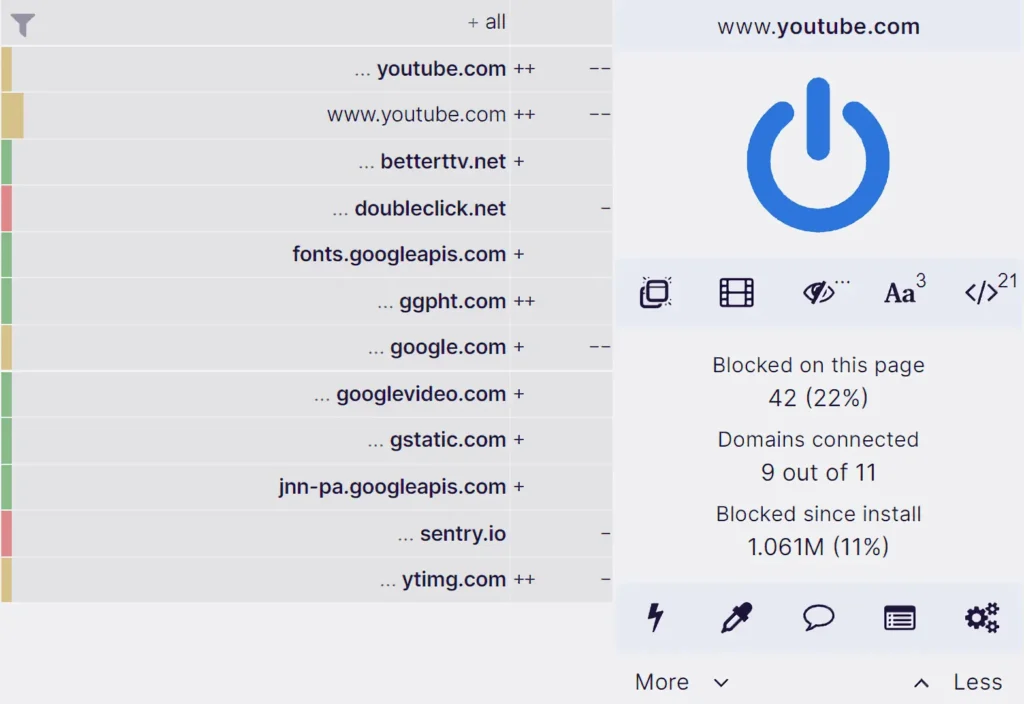
Its main advantage is control over filtering. Users can enable additional lists and create rules. The element picker can also hide unwanted elements on webpages. Advanced users can manage individual website permissions.
The interface provides more detail than beginner-focused blockers. You can inspect blocked requests and filtering decisions. This helps when diagnosing website problems. However, its advanced controls require some learning.
What stands out:
- Advertisement and tracker filtering.
- Custom rules and filter-list management.
- Cosmetic filtering and element selection.
- Advanced site-specific controls.
- Open-source development without a subscription.
Where it falls short:
- Beginners may find the interface complicated.
- Custom filtering requires some technical understanding.
- Full Chrome Web Store distribution has ended.
- It doesn’t provide automatic system-wide protection.
- Excessive filtering can affect website functionality.
Our assessment: uBlock Origin suits users wanting extensive control. Firefox users can access its full feature set. It’s particularly useful for managing advanced filtering rules.
Free version: Completely free and open source.
Best for: Firefox users and advanced content-blocking requirements.
You can find its source code and documentation in the official uBlock Origin repository.
2. uBlock Origin Lite: Best for Modern Chrome Browsing
uBlock Origin Lite addresses newer browser extension requirements. It uses Manifest V3’s declarative filtering architecture. However, it doesn’t reproduce every original capability.
The extension provides four filtering modes. These are No Filtering, Basic, Optimal, and Complete. Optimal is the intended default configuration.
Basic blocks matching network requests. It doesn’t apply cosmetic or scriptlet-based filtering. Optimal adds site-specific cosmetic and scriptlet filtering. Complete also applies generic cosmetic filters across websites.
This creates an important practical distinction. Some advertisement placeholders may remain in Optimal mode. Complete mode can hide additional matching elements. However, the extra page processing may use more resources.
What stands out:
- Designed for Manifest V3-compatible browsers.
- Free and open-source availability.
- Multiple filtering modes.
- Network and cosmetic filtering capabilities.
- Custom filtering options.
- Suitable for modern Chrome installations.
Where it falls short:
- Dynamic filtering is more restricted.
- Some advanced original rules are unavailable.
- Customisation remains less extensive.
- Some website placeholders can remain visible.
- Complete mode may require additional page processing.
Our assessment: Lite is a sensible Chrome alternative. It keeps the original project’s filtering philosophy. However, users should understand its reduced capabilities.
Free version: Completely free and open source.
Best for: Chrome users seeking an open-source content blocker.
Practical configuration tip: Start with Optimal filtering. Try Complete on pages with visible placeholders. Also, grant the website permissions needed for cosmetic filtering.
Raymond Hill’s official uBlock Origin Lite documentation explains these differences in greater detail.
3. AdGuard Browser Extension: Best for Everyday Protection
AdGuard offers a balanced advertisement-blocking extension. It combines content filtering with privacy controls. Users can also enable additional filter categories.
Its interface is relatively approachable. Beginners can start with the default filters. More experienced users can configure additional protection. So, it suits mixed browsing requirements.
AdGuard supports Chrome, Firefox, Edge, Opera, and Yandex Browser. Its Chrome and Edge extensions have Manifest V3 support. Safari users need a separate Apple product.
What stands out:
- Banner and pop-up advertisement blocking.
- Support for video advertisement filtering.
- Tracking and privacy-related filters.
- Customisable filtering categories.
- Support for major desktop browsers.
- Free browser extension without registration.
Where it falls short:
- Some filtering categories need manual activation.
- Extensions can’t protect every installed application.
- Separate desktop applications have different pricing.
- Some strict filters may break webpages.
- Browser versions can have different capabilities.
Our assessment: AdGuard provides a balanced everyday option. Its interface suits users avoiding complicated configuration. Additional filters also provide more control.
Free version: Its browser extension is free. Standalone applications have separate pricing arrangements.
Best for: Everyday desktop ad-blocking and tracker protection.
Practical configuration tip: Review the available filter categories first. Enable only relevant additional protections. This may help prevent unnecessary website breakage.
You can review supported browsers and features through AdGuard’s official browser extension documentation.

4. Ghostery: Best for Advertisement and Tracker Visibility
Ghostery combines advertisement blocking with tracker detection. Its interface also displays observed tracking activity. As a result, users get additional information about websites.
The service maintains a large tracker database. Its interface helps identify tracking technologies. Users can review detected trackers and manage preferences. Its Never-Consent feature also handles supported cookie banners.
Ghostery supports Chrome, Safari, Opera, Firefox, Edge, and Brave. Separate browser versions need individual installation. Mobile support also depends on the selected browser.
What stands out:
- Advertisement and tracker protection.
- Visible information about detected tracking.
- Customisable tracker controls.
- Cookie-consent banner handling.
- Open-source development.
- Free access without subscription requirements.
Where it falls short:
- Its interface may feel busy initially.
- Advanced custom filtering is less extensive.
- It’s primarily a browser-focused product.
- Some tracking techniques may remain undetected.
- Users must understand its privacy settings.
Our assessment: Ghostery suits privacy-conscious users. It offers useful tracking visibility beyond basic blocking. However, users preferring extensive rule editing may prefer uBlock Origin.
Free version: Ghostery states that all privacy protection features are free.
Best for: Users prioritising tracker visibility and privacy controls.
For additional details, Ghostery explains its free protection and tracker database on its official website.

5. AdBlock: Best for Beginners
AdBlock is a separate product from Adblock Plus. Both provide advertisement-blocking browser extensions. However, their settings and product features differ.
AdBlock focuses on straightforward browser protection. Users can install its extension and begin. It also offers website exceptions and manual blocking. Additional functionality comes through its optional Premium upgrade.
One point deserves attention before switching. AdBlock participates in Acceptable Ads by default. Therefore, its default settings may not suit everyone.
What stands out:
- Beginner-friendly installation and settings.
- Free basic advertisement blocking.
- Manual advertisement blocking on desktop.
- Website allowlisting controls.
- Support for major browsers.
- Optional Premium features.
Where it falls short:
- Acceptable Ads is enabled by default.
- Some extra features require Premium.
- Default settings may not block everything.
- Advanced filtering is less extensive.
- Some settings require manual adjustment.
Our assessment: AdBlock suits users preferring simplicity. Its free features cover everyday blocking needs. However, users wanting stricter filtering should review its settings.
Free version: Basic blocking is free. Premium is optional and doesn’t improve core browser blocking.
Best for: Beginners who want straightforward advertisement blocking.
You can check its official free-versus-Premium explanation before installing.
Which of These Five Should You Choose?
The differences become clearer when considering individual requirements.
- Choose uBlock Origin for extensive Firefox filtering.
- Choose uBlock Origin Lite for modern Chrome installations.
- Choose AdGuard for balanced everyday protection.
- Choose Ghostery for tracker visibility and privacy controls.
- Choose AdBlock for simple advertisement blocking.
No extension guarantees that every advertisement disappears. Websites also change their advertising methods. Filter maintenance and browser compatibility affect results. So, review your settings after installation.
12 Best Free Adblock Plus Alternatives in 2026
The following alternatives cover different protection methods. Some are browser extensions, while others are integrated blockers. Two options use DNS-based filtering instead.
1. uBlock Origin: Best for Advanced Filtering
uBlock Origin combines advertisement and content filtering. It also blocks many unwanted tracking requests. Its advanced controls suit experienced browser users.
Users can customise filter lists and rules. They can also inspect blocked requests. The project supports Firefox particularly well. Chrome users should select its Lite counterpart.
Free offering: Completely free and open source.
Main limitation: The advanced interface requires some learning. Full Chrome Web Store distribution has ended.
Best for: Firefox users seeking advanced content filtering.
2. uBlock Origin Lite: Best for Chrome
uBlock Origin Lite supports newer browser extension requirements. It uses declarative filtering instead of full uBlock Origin. Its modes provide different levels of blocking.
Optimal is a sensible starting configuration. Complete may hide additional webpage elements. However, some advanced filtering capabilities remain unavailable.
Free offering: Completely free and open source.
Main limitation: It doesn’t match full uBlock Origin. Some website placeholders can remain visible.
Best for: Chrome users seeking free advertisement blocking.
3. AdGuard Browser Extension: Best for Everyday Browsing
AdGuard blocks banners, pop-ups, and trackers. It also offers supported video advertisement filtering. Its interface provides manageable settings for beginners.
The free extension is separate from standalone applications. Users should check the exact product carefully. Desktop and mobile application pricing differs.
Free offering: Free browser extension without registration.
Main limitation: It protects the supported browser only. Device-wide protection requires another solution.
Best for: Everyday desktop browser protection.
4. Ghostery: Best for Tracker Protection
Ghostery blocks advertisements and known trackers. Its interface also displays observed tracking activity. Users can review and manage individual trackers.
The extension supports several major browsers. Its core privacy protection is completely free. Optional contributions support continued development.
Free offering: Free extension with no subscription.
Main limitation: Its advanced filtering controls are less extensive.
Best for: Users who want more tracking visibility.
5. AdBlock: Best for Beginners
AdBlock provides straightforward advertisement blocking. Its free extension works across supported browsers. Premium adds optional features and services.
However, its Acceptable Ads setting deserves attention. Users preferring stricter blocking can disable it.
Free offering: Basic advertisement blocking is free.
Main limitation: Some additions require Premium. Acceptable Ads is enabled by default.
Best for: Beginners seeking simple browser protection.
6. AdBlocker Ultimate: Best Without an Acceptable Ads Whitelist
AdBlocker Ultimate blocks advertisements without approved-ad exceptions. It also offers tracker and malicious-domain filtering. Its browser extension is free to use.
The product suite includes standalone applications. Those applications follow separate paid arrangements. They include a 14-day trial.
Free offering: Free browser extension.
Main limitation: Desktop and mobile applications are paid.
Best for: Users wanting an extension without an Acceptable Ads whitelist.
You can check its official product and support documentation for current platform details.
7. Malwarebytes Browser Guard: Best for Additional Web Security
Malwarebytes Browser Guard combines blocking and security features. It removes advertisements and supported tracking content. It also protects against certain malicious websites.
Cookie-banner blocking is included in its free functionality. The extension supports Chrome, Firefox, Edge, and Safari. Some additional protections require a Malwarebytes plan.
Free offering: Core Browser Guard protection is free.
Main limitation: It doesn’t replace full antivirus protection. Some advanced security features require payment.
Best for: Users wanting browser security alongside advertisement blocking.
Malwarebytes lists its free and Premium Browser Guard features on the official product page.
8. Brave Shields: Best Built-In Ad Blocker
Brave includes advertisement protection within its browser. Its Shields feature blocks many advertisements and trackers. Therefore, you don’t need a separate extension.
It also offers fingerprinting and cookie protections. Users can select Standard or Aggressive protection. Aggressive mode applies stricter blocking rules.
Free offering: Included with the Brave browser.
Main limitation: Protection remains inside Brave. Aggressive settings can break some websites.
Best for: Users willing to change browsers.
9. Opera Ad Blocker: Best for Simple Built-In Blocking
Opera provides an integrated advertisement blocker. Users can enable it through browser settings. Its tracker blocker offers additional privacy protection.
The browser also supports website exceptions. You can disable protection for selected websites. This helps when filtering causes problems.
Free offering: Built into Opera.
Main limitation: It doesn’t protect other browsers.
Best for: Existing Opera users seeking simple protection.
Opera explains its built-in ad blocker and website exceptions in its official documentation.
10. AdAway: Best Free Android Ad Blocker
AdAway is a free, open-source Android application. It blocks known advertising and tracking domains. Unlike ordinary extensions, it can cover multiple applications.
Rooted devices can update their system hosts file. Non-rooted devices can use local VPN filtering. Users can also manage custom blocklists.
AdAway is available through F-Droid. It’s not distributed through Google Play. Its official documentation explains both installation methods.
Free offering: Completely free and open source.
Main limitation: It’s designed for Android. Local VPN filtering can conflict with other VPN applications. Some same-domain advertisements may remain.
Best for: Android users seeking wider application filtering.
Visit the official AdAway website for installation instructions.
11. AdGuard Public DNS: Best Free DNS-Based Ad Blocker
AdGuard Public DNS filters known advertising domains. It also blocks supported tracking and malicious domains. Users can configure devices or routers.
The service provides several DNS endpoints. Its default server blocks advertisements and trackers. Its family server adds additional content filtering.
- Free offering: Public DNS endpoints are free.
- Main limitation: DNS filtering can’t hide webpage elements. It also struggles with same-domain advertisements.
- Best for: Users wanting domain-level protection across configured devices.
12. NextDNS: Best for Customisable DNS Filtering
NextDNS offers configurable DNS-level filtering. Users can select advertising and privacy blocklists. They can also create individual device configurations.
Its dashboard displays useful DNS activity. You can review blocked domains and security events. This helps manage filtering across devices.
The free plan includes 300,000 monthly queries. It supports unlimited devices and configurations. After exceeding the allowance, configured blocking stops. DNS queries continue resolving without the configured filters.
- Free offering: 300,000 queries every month.
- Main limitation: Heavy users may exceed the allowance.
- Best for: Users wanting configurable DNS filtering.
NextDNS explains its free quota and paid plan differences on its pricing page.
Which Adblock Plus Alternative Is Best for Your Browser and Device?
Browser compatibility should guide your final choice. An otherwise suitable extension might not install. Some platforms also require separate applications.
Best Adblock Plus Alternatives for Chrome
Chrome users should prioritise Manifest V3 extensions. Full uBlock Origin is no longer normally available. Its Lite counterpart addresses this compatibility requirement.
Other options include AdGuard and Ghostery. AdBlock and Malwarebytes Browser Guard provide alternatives. Brave offers another approach through integrated Shields.
Our recommendation: Start with uBlock Origin Lite. Consider AdGuard for simpler configuration. Choose Brave when browser switching is acceptable.
Best Adblock Plus Alternatives for Firefox
Firefox remains suitable for advanced content blocking. Full uBlock Origin works particularly well here. Its filtering controls remain more extensive.
AdGuard and Ghostery offer other approaches. You can also use AdBlock for simpler protection.
Our recommendation: Choose uBlock Origin for advanced filtering. Choose Ghostery for additional tracking visibility.
Best Adblock Plus Alternatives for Microsoft Edge
Edge users should check Manifest V3 support. Its extension availability can differ from Chrome. Therefore, review the current Edge Add-ons listing.
uBlock Origin Lite is a suitable modern option. AdGuard also provides a compatible extension. Ghostery and Malwarebytes offer additional choices.
Our recommendation: Prefer current Manifest V3 extensions. Check the publisher and extension version before installing.
Best Adblock Plus Alternatives for Safari
Safari uses Apple’s content-blocking framework. Its extensions differ from traditional Chromium extensions. Consequently, check the exact Safari product version.
Ghostery and AdBlock offer Safari options. AdGuard also has separate Apple platform products. DNS filtering provides another option for configured devices.
Our recommendation: Start with Safari-compatible content blockers. Consider AdGuard DNS for broader domain filtering.
Apple explains Safari’s content-blocking extension architecture in its developer documentation.
Best Adblock Plus Alternatives for Android
Android offers browser and application filtering. AdAway supports wider domain-level blocking. NextDNS offers configurable protection across applications.
Some browsers support their own extensions. Firefox for Android is particularly useful for uBlock Origin. AdGuard also has separate Android products.
Our recommendation: Choose AdAway for open-source filtering. Consider NextDNS for configurable DNS protection.
Best Adblock Plus Alternatives for iPhone and iPad
Apple supports Safari content-blocking extensions. These extensions provide rules for blocking content. DNS configuration is another available approach.
Ghostery and AdBlock provide Safari options. AdGuard also offers compatible Apple products. Android-only applications such as AdAway aren’t suitable.
Our recommendation: Start with Safari-compatible extensions. Consider DNS filtering for broader domain protection.
Compatibility Comparison
| Alternative | Chrome | Firefox | Edge | Safari | Android |
|---|---|---|---|---|---|
| uBlock Origin | No normal Web Store installation | Yes | Version-dependent | No full version | Through Firefox |
| uBlock Origin Lite | Yes | Yes | Yes | Supported versions | Browser-dependent |
| AdGuard | Yes | Yes | Yes | Separate product | Separate app |
| Ghostery | Yes | Yes | Yes | Yes | Supported browsers |
| AdBlock | Yes | Yes | Yes | Separate offering | Separate offering |
| AdBlocker Ultimate | Yes | Yes | Yes | Check current store | Separate app |
| Malwarebytes Browser Guard | Yes | Yes | Yes | Yes | No equivalent standard extension |
| Brave Shields | Brave only | No | No | No | Brave browser |
| Opera Ad Blocker | Opera only | No | No | No | Opera browser |
| AdAway | No | No | No | No | Yes |
| AdGuard Public DNS | DNS configuration | DNS configuration | DNS configuration | DNS configuration | DNS configuration |
| NextDNS | DNS configuration | DNS configuration | DNS configuration | DNS configuration | DNS configuration |
Support varies by product version and platform. DNS services aren’t browser extensions.
You can visit our Privacy Software directory to find more privacy and security-related software here.
Browser Extensions vs DNS Ad Blockers vs Built-In Protection
The blocking method changes what advertisements disappear. It also determines which applications receive protection. Understanding these differences prevents unrealistic expectations.
How Browser Extension Ad Blockers Work
Browser extensions filter network requests and webpage elements. They use rulesets to identify unwanted content. Some also hide advertisement placeholders.
This approach suits everyday desktop browsing. Tools such as uBlock Origin and AdGuard use filters. Their capabilities depend on browser permissions and available rules.
Advantages:
- Can block known advertisement requests.
- Can hide matching webpage elements.
- Often support custom filter lists.
- Can offer individual website controls.
Limitations:
- Usually protect one browser at a time.
- Require installation and maintenance.
- May break certain website features.
- Can’t automatically filter every application.
How DNS-Based Ad Blocking Works
DNS services check domain requests before resolution. Filtering services compare requests against blocklists. They can prevent connections to known advertising domains.
This can cover several configured devices. You don’t need a separate extension everywhere. However, DNS can’t inspect individual webpage elements.
Advantages:
- Can cover multiple configured devices.
- Works across supported applications.
- Requires no browser extension installation.
- Offers centralised filtering options.
Limitations:
- Can’t hide empty advertisement containers.
- Can’t inspect individual page elements.
- May block legitimate website services.
- Struggles with same-domain advertisements.
How Built-In Browser Protection Works
Brave Shields and Opera include blocking functionality. Users can enable protection through browser settings. These features don’t require separate extensions.
The convenience is their main advantage. However, protection remains inside that browser. Other applications receive no automatic coverage.
Which Blocking Method Should You Choose?
| Requirement | Browser extensions | DNS blockers | Built-in browser |
|---|---|---|---|
| Banner blocking | Yes | Domain-dependent | Browser-dependent |
| Pop-up blocking | Usually | Limited | Usually |
| Cosmetic filtering | Often | No | Depends |
| Tracker blocking | Yes | Domain-based | Depends |
| Device-wide coverage | Generally no | Possible | No |
| In-app advertisement blocking | Limited | Domain-dependent | No |
| Custom filters | Often extensive | Service-dependent | Browser-dependent |
| Separate installation | Required | DNS configuration | No |
Our recommendation: Most desktop users can start with extensions. DNS filtering suits broader device coverage. Built-in protection suits users avoiding additional extensions.
Can Free Ad Blockers Remove YouTube and In-App Advertisements?
Some blockers remove advertisements from video websites. However, complete removal isn’t guaranteed. The delivery method affects filtering capabilities.
Why DNS Blockers Cannot Reliably Remove YouTube Ads
YouTube may serve advertisements alongside video content. DNS filters operate at the domain level. They can’t always distinguish separate content requests.
Blocking an entire domain can interrupt playback. Therefore, DNS services can’t guarantee YouTube advertisement removal. Browser-based filtering can behave differently.
Results also change as websites update. So, don’t rely on permanent blocking guarantees. Test your chosen extension with regular browsing.
Can Ad Blockers Stop Advertisements Inside Android Apps?
Some Android blockers filter known advertising domains. AdAway uses hosts-file or VPN filtering. DNS services can provide similar domain-level controls.
However, applications may share advertising domains. Some advertisements use the same delivery infrastructure. Consequently, certain in-app ads may remain visible.
Why Do Some Advertisements Still Appear?
Several issues can explain incomplete filtering:
- First-party advertising: Ads may come from website-owned domains.
- New domains: Filter lists may not recognise new sources.
- Shared delivery: Ads and content may share infrastructure.
- Disabled filtering: Browser settings may affect protection.
- Allowlisted websites: Your configuration may permit advertisements.
- Anti-ad-blocking systems: Some pages detect filtering extensions.
Updating filter lists may solve certain problems. You can also review website exceptions. However, technical limitations sometimes prevent complete blocking.
Are Free Ad Blockers Really Free?
Not every product follows the same model. Some offer completely free extensions. Others reserve advanced protection for paid applications.
Check the exact product before installing. A free extension doesn’t guarantee free applications.
Completely Free and Open-Source Options
uBlock Origin and uBlock Origin Lite are free. AdAway is also free and open source. Their source code is publicly available.
Ghostery also provides free privacy protection. Its published policy confirms all core features. Optional contributions help fund development.
Free Extensions With Paid Features
AdGuard offers a free browser extension. Its standalone desktop and mobile products differ. AdBlock offers optional Premium features.
AdBlocker Ultimate provides another example. Its extension is free, unlike standalone applications. Those applications include a 14-day trial.
Malwarebytes Browser Guard offers free core protection. Its broader Malwarebytes security plans provide additional features. So, check the exact feature comparison before subscribing.
Free DNS Services With Usage Limits
NextDNS provides a monthly free allowance. Its free plan includes 300,000 DNS queries. Configured blocking stops after that allowance.
AdGuard Public DNS offers another option. Its public endpoints remain free to configure. However, private configuration options differ from NextDNS.
How to Switch From Adblock Plus Without Losing Your Settings
Switching blockers is usually straightforward. However, custom filters may not transfer directly. Different products use different rule formats.
You can reduce problems with preparation. Follow these steps before removing your existing extension.
Step 1: Check Whether You Actually Need a Replacement
First, identify what Adblock Plus is allowing. Review Acceptable Ads and active filter lists. You may only need a settings change.
If compatibility is the problem, check your browser. Chrome users should confirm Manifest V3 requirements.
Step 2: Choose a Compatible Alternative
Compare the extension against your browser. Check the official store or developer website. Avoid outdated installation instructions and unofficial downloads.
Step 3: Install the New Extension
- Open your browser’s official extension store.
- Search for the exact product name.
- Verify the publisher and extension details.
- Review requested permissions before installing.
- Enable the extension in your browser.
- Open its settings and inspect default filters.
Step 4: Review Existing Filter Lists
Some blockers support custom filter imports. Others use different settings and rule formats. So, don’t assume every rule transfers.
Save important custom rules separately. Then check the new extension’s import options. Recreate unsupported exceptions when necessary.
Step 5: Test Your Regular Websites
Visit the websites you use regularly. Check news pages, shopping sites, and videos. Look for broken layouts or missing content.
You can also test different browsing modes. This helps identify browser-specific filtering problems.
Step 6: Resolve Extension Conflicts
Multiple blockers can duplicate filtering rules. This may create confusing website behaviour. Start by testing one extension at a time.
If a website stops working:
- Open the extension’s site-specific settings.
- Check whether the website has exceptions.
- Temporarily disable blocking on that website.
- Check whether another extension creates conflicts.
- Update available filters and test again.
You can keep separate privacy tools installed. However, overlapping content blockers need careful configuration.
What Should You Check Before Installing a Free Ad Blocker?
A few checks can prevent common problems. They also help avoid misleading free-product claims.
Browser and Operating System Compatibility
Check the exact browser and platform first. Desktop support doesn’t guarantee mobile support. Safari and Android often use separate products.
Extension Permissions and Developer Reputation
Read the requested permissions before installation. Check the publisher’s official website and support pages. Prefer official stores and verified repositories.
Free Features and Premium Restrictions
Look for clear free-plan documentation. Confirm whether device-wide blocking requires payment. Check query quotas and trial periods.
Privacy Policies and Data Collection
Read how the extension handles browsing information. Check optional diagnostic and usage-data settings. Understand information-sharing choices before enabling them.
Updates and Filter-List Maintenance
Advertisement blockers need current filtering rules. Outdated lists may miss newer advertising domains. Therefore, review release activity and support documentation.
Website Compatibility
Stricter blocking can break website features. Login forms and embedded media may stop working. Check site-specific settings before removing the extension.
Frequently Asked Questions About Adblock Plus Alternatives
-
What Is the Best Free Alternative to Adblock Plus?
uBlock Origin is a strong Firefox option. Chrome users can consider uBlock Origin Lite. AdGuard offers balanced browser protection. Your requirements should determine the final choice.
-
Is uBlock Origin Better Than Adblock Plus?
uBlock Origin provides extensive filtering and customisation. It’s also free and open source. Adblock Plus offers simpler settings and Acceptable Ads. The better choice depends on your preferences.
-
Does uBlock Origin Still Work on Chrome in 2026?
Full uBlock Origin is no longer normally available. Chrome removed remaining Manifest V2 extensions on August 31, 2026. Chrome users can consider uBlock Origin Lite instead.
-
Which Ad Blockers Don’t Allow Acceptable Ads?
AdBlocker Ultimate states that it has no predefined whitelist. Other blockers may follow different advertising policies. Check their default settings before switching.
-
Is Ghostery Completely Free?
Ghostery states that all privacy features remain free. Its browser extension requires no subscription. Optional contributions support continued development.
-
What Is the Best Free Ad Blocker for Android?
AdAway is a strong open-source option. It supports rooted and non-rooted Android devices. DNS services provide another filtering method. Choose according to your required coverage.
-
Can a DNS Ad Blocker Block YouTube Advertisements?
DNS blockers can’t reliably remove every YouTube advertisement. Some ads share domains with video content. Blocking those domains can interrupt playback.
-
Which Free Ad Blocker Uses the Least Memory?
Memory usage depends on several variables. Browser architecture and filter lists matter. Open tabs and extensions also affect resources. Without controlled benchmarking, a universal ranking would be misleading.
-
Are Free Ad Blockers Safe to Use?
Reputable blockers can be safe when installed correctly. Download them from official stores or repositories. Review permissions, publishers, and privacy policies. Avoid unknown extensions promising unlimited protection.
-
Can I Use Two Ad Blockers at the Same Time?
You can install multiple blockers in many browsers. However, overlapping rules may create conflicts. Start with one primary content blocker. Add separate privacy tools when needed.
-
Do Ad Blockers Work Without Internet Access?
Advertisement filtering extensions don’t need a separate subscription. However, their filtering lists require updates. Previously downloaded rules may continue working offline. New website requests still require connectivity.
Final Thoughts: Which One Should You Choose?
The best replacement depends on your browsing requirements. Firefox users can start with uBlock Origin. Chrome users should consider uBlock Origin Lite. Meanwhile, AdGuard and Ghostery offer other browser-focused options.
Android users may prefer AdAway for wider filtering. AdGuard Public DNS and NextDNS offer domain protection. However, DNS blocking can’t remove every advertisement.
Before switching, check the free functionality carefully. Confirm browser compatibility and review privacy settings. Start with one blocker and test regular websites.
You don’t need the most complicated ad blocker. You just need one that fits your browser, device, and privacy requirements.