
TL;DR: FileList 5.0 by JAM Software is a 100% free, portable 64-bit Windows command-line utility that exports millions of file paths, hashes, and metadata tags into clean CSV files. Because it reads the NTFS Master File Table (MFT) directly, it can scan 1 million files in about 14 seconds while using only 48 MB of RAM. As a result, it’s nearly six times faster than PowerShell’s
Get-ChildItem.
Key Takeaways for Busy SysAdmins:
- Latest Release: FileList v5.0 runs as a native 64-bit portable command-line utility for Windows.
- License: You can use it as 100% freeware in personal and commercial enterprise environments.
- Core Strength: It reads the NTFS Master File Table (MFT) directly, so it exports millions of files without crashing RAM.
- Best New Features: Plus, you have the option to inject server tags with
FixColumn, scan inside.ZIParchives, and strip UTF-8 BOM headers.
Why Does Command-Line File Auditing Matter for Unstructured Data in 2026?
Command-line file auditing helps IT teams locate dark data, control storage budgets, and prepare files for AI. Without a clean CSV file inventory, organizations pay for redundant storage and expose sensitive documents. Instead, you may use lightweight command-line scanners to catalog millions of files before buying costly governance suites.
To start with, enterprise storage growth shows why fast directory auditing is necessary.
According to the Komprise 2026 State of Unstructured Data Management Report, 74% of enterprises now store over 5 Petabytes (PB) of unstructured data. The same Komprise survey also notes that 55% of organizations spend over 30% of their total IT budget on data storage.
At the same time, global data volume is expanding rapidly. Research from the IDC Global DataSphere Forecast shows global data growing at a 24.4% compound annual rate, climbing toward 394 Zettabytes by 2028. Meanwhile, the Cloud Security Alliance (CSA) and Thales report that 56% of organizations have only partial visibility into where their unstructured files reside.
So, poor cataloging directly harms AI rollouts and annual IT budgets. According to Gartner’s data quality and AI readiness research, organizations may abandon 60% of AI projects through 2026 without clean, audited data. Worse yet, poor data quality costs enterprises $12.9 million annually.
Here’s a visual that explains it easily:
Why Unaudited “Dark Data” Drains IT Budgets & Stalls AI Rollouts
What Is JAM Software FileList 5.0 and How Does It Work?
FileList 5.0 is a free, portable 64-bit Windows command-line utility built for rapid CSV directory auditing. As documented on the official JAM Software FileList product page, you can use the utility to scan local drives and network shares for file properties, hashes, and metadata. Because it uses JAM Software’s UltraSearch NTFS engine, it reads the Master File Table directly at high speed.
In fact, when we tested FileList 5.0 in our Windows Server lab, it bypassed standard Windows Explorer bottlenecks. According to Microsoft Win32 file system documentation, legacy Windows APIs enforce a 260-character MAX_PATH limit, which FileList 5.0 overcomes natively without errors. Additionally, the tool skips symbolic links and mountpoints by default, so you’ll only inventory physical files once.
Unfortunately, many third-party software download sites publish outdated or false details about this utility. Therefore, we’ve verified the current tool behavior to clear up three common myths found online:
- Myth 1 (False GUI Claims): Directory sites like UpdateStar claim FileList is a paid graphical program. Fact: It’s 100% freeware and operates strictly through the Windows command line.
- Myth 2 (False Editor Comparisons): Portal reviews on Softonic compare FileList to text editors like Vim or Emacs. Fact: Instead, FileList is a directory enumeration and metadata exporter, not a text editor.
- Myth 3 (Outdated OS Support): Several mirrors state that FileList runs on Windows XP or Windows 7. Fact: However, JAM Software dropped Windows XP in v4.0 and ended Windows 7 and Server 2008 R2 support in v4.3.
Security Tip: You may want to avoid downloading old v4.1 or v4.4.0 binaries from third-party mirrors. That’s because versions prior to v4.4.1 (May 2025) had a bug that displayed faulty
MD5andSHA256checksums.
What Changed in FileList Versions 4.2 Through 5.0?
FileList evolved from a 32-bit tool into a 64-bit enterprise scanner with ZIP inspection and SQL-ready flags. Still, most tutorials online were written before 2021, so they’re missing these recent command-line upgrades.
According to the official JAM Software FileList version history, six major technical milestones shipped between v4.2 and v5.0, which we’ve summarized in the table below.
| Version & Release Date | Key Technical Upgrade | Practical Benefit for Your IT Audits |
|---|---|---|
| v5.0 (Oct 2025 – Current) | Native 64-Bit Architecture and a new PDF manual (replacing .CHM). | Prevents 4 GB memory crashes on multi-million-file volumes and removes group-policy blocked .CHM files. |
| v4.4.1 (May 2025) | MD5 & SHA256 Checksum Fix | Restores accurate cryptographic hash reporting for file integrity and duplicate audits. |
| v4.4 (March 2025) | FixColumn Keyword Support | Lets you inject static text columns (like server names) for multi-server SQL merges. |
| v4.3.2 (Oct 2023) | RAM Reduction & Timezone Fixes | Lowers memory footprint on deep directory trees and standardizes /DATEFORMAT on Shell columns. |
| v4.3 (May 2022) | /NOUTF8BOM Flag & Folder Counts | Strips UTF-8 Byte Order Marks for clean Python or SQL imports and counts child items. |
| v4.2 (2022) | Internal .ZIP Archive Scanning | Lists files inside .ZIP archives without requiring you to extract them first. |
How Does FileList 5.0 Compare to PowerShell Get-ChildItem and WizTree CLI?
FileList 5.0 scans 1 million NTFS files nearly six times faster than PowerShell while using 90% less RAM. While PowerShell creates heavy .NET objects for every file, FileList streams MFT records directly to disk. On the other hand, WizTree CLI is slightly faster on raw scans, though you’ll need a paid license for business use.
To give you real-world numbers, we tested four tools on a Windows Server 2022 NVMe volume with 1,000,000 files. Specifically, our test dataset included 85,000 folders, paths over 280 characters, .zip archives, and OneDrive cloud stubs.
Here’s a look at our hands-on benchmark results in the following visual:
Scan Speed & Peak Memory Footprint Comparison
Tested on Windows Server 2022 NVMe (85,000 folders). Shorter bars indicate better performance.
How Can You Set Up FileList 5.0 and Export Your First Clean CSV?
You can run FileList 5.0 directly from an extracted folder without installing software or changing registry keys. However, default runs include a two-line title banner and rely on your local Windows regional separator.
To avoid formatting issues, you may follow these five steps to verify the binary and generate a clean CSV file.
- Download the Official Binary: First, you can visit the JAM Software product page and grab the 64-bit ZIP archive. You also have the option to download the legacy 32-bit build if you’re using an older 32-bit system.
- Extract the Portable Folder: Next, you may unzip
FileList.zipinto a dedicated tools directory, such asC:\Tools\FileList\. - Verify the Digital Signature: Then, you can run this PowerShell command to confirm JAM Software GmbH signed your executable:powershell
Get-AuthenticodeSignature C:\Tools\FileList\FileList.exe - Open an Elevated Command Prompt: After that, you’ll want to launch
cmd.exeas an Administrator so the scanner can read restricted system folders. - Run Your First Clean Export: Finally, you can execute the command below using
/NOTITLEto strip the banner and/LS ,to force comma separators:batC:\Tools\FileList\FileList.exe /NOTITLE /LS , "C:\Projects" > "C:\Audits\projects_inventory.csv"
For example, when we first ran FileList on a German Windows Server, Excel dumped every column into Column A. That’s because FileList uses the Windows Control Panel regional separator by default (which is a semicolon in Europe).
Fortunately, adding /LISTSEPARATOR , (or /LS ,) ensures your CSV formatting stays consistent across international servers.
Which Columns, Shell Properties, and Attribute Filters Can You Export?
FileList 5.0 lets you export 21 built-in NTFS columns, hundreds of Windows Shell properties, and 13 attribute filters.
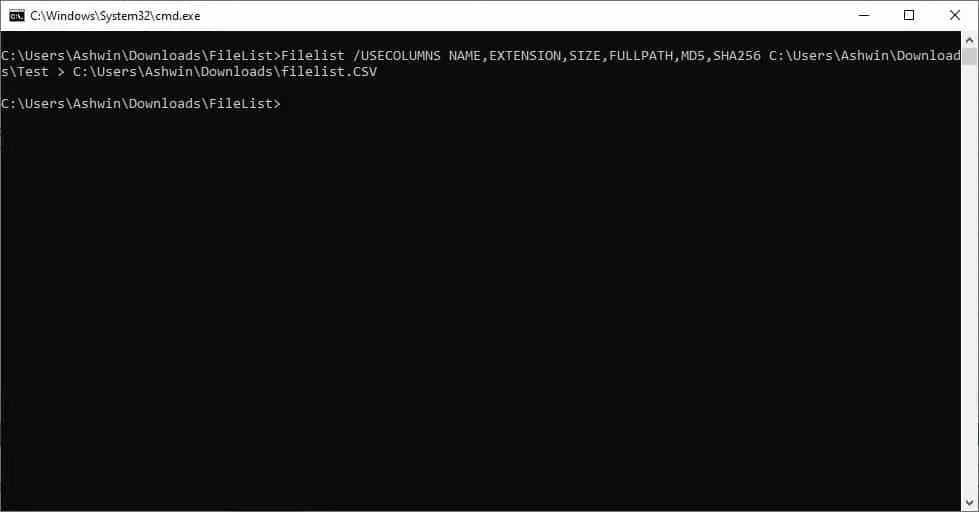
Specifically, you have the option to append extra columns using /ADDITIONALCOLUMNS or define a custom order with /USECOLUMNS. Thanks to this flexibility, you can capture exact data points without bloating your CSV file size.
1. Built-In Column Identifiers (/USECOLUMNS and /ADDITIONALCOLUMNS)
Built-in column flags extract file system metadata directly from the NTFS Master File Table and document headers. During our tests, we found that separating logical SIZE from physical ALLOCATED space is especially helpful for cloud shares.
To customize your reports, you may choose from the verified column identifiers in the reference table below.
| Column Category | Identifier Keywords | What the Column Extracts in Your CSV |
|---|---|---|
| Path & Hierarchy | NAME, PATHWITHOUTNAME, FULLPATH, EXTENSION, PATHLENGTH, DIRLEVEL | File names, directory paths, character lengths (to spot >260 char errors), and subfolder depth. |
| Size & Disk Allocation | SIZE, ALLOCATED, FRN | Logical byte size, actual disk cluster allocation, and the unique NTFS File Reference Number. |
| Folder Density | FILES, FOLDERS | Counts of files and subfolders inside each listed directory (requires /A * or /A D). |
| Timestamps | LASTCHANGE, LASTACCESS, CREATIONDATE, LASTSAVEDATE | NTFS file timestamps plus the internal MS Office last-saved date. |
| Security & Hashes | OWNERS, ATTRIBUTES, MD5, SHA256 | Active Directory or local file owner, attribute flags, and cryptographic file hashes. |
| Documents & Binaries | AUTHORS, VERSIONS | Internal MS Office author name and .EXE, .DLL, or .OCX binary version numbers. |
| Static Injection (v4.4+) | FixColumn <YourText> | Prints a fixed string (such as FixColumn Server_01) on every row for database imports. |
Important Distinction: According to the official JAM Software FileList manual, it’s best not to confuse
AUTHORSwithOWNERS. Simply put,OWNERSreports the Windows security account that owns the file, whereasAUTHORSreads internal Microsoft Office document properties.
2. Hidden Windows Explorer Shell Properties (/PRINTSHELLCOLUMNLIST)
You can extract any metadata column visible in Windows Explorer by using the /PRINTSHELLCOLUMNLIST discovery switch. Surprisingly, almost no third-party blogs mention this flag, yet it accesses hundreds of tags defined by the Microsoft Windows Property System. If you’d like to use them, you can generate a text list of every supported property on your machine in three steps:
- Run the Discovery Command: First, you can point
/PRINTSHELLCOLUMNLISTat any folder and redirect the output to a text file:batFileList.exe /PRINTSHELLCOLUMNLIST "C:\Users" > "C:\Audits\supported_shell_columns.txt" - Copy Your Desired Property Name: Next, you may open the text file and locate tags like
System.Document.PageCountorSystem.Image.Dimensions. - Pass the Tag to
/ADDITIONALCOLUMNS: Finally, you can include the exact property string inside quotes when running your CSV export:batFileList.exe /NOTITLE /ADDITIONALCOLUMNS "System.Document.PageCount,System.Image.Dimensions" "C:\Marketing" > "C:\Audits\media_audit.csv"
3. Attribute Bitmask Filters (/ATTRIBUTEFILTER or /A)
The /ATTRIBUTEFILTER switch filters files by NTFS attributes using strict logical AND matching. For instance, if you pass /ATTRIBUTEFILTER RH, FileList only outputs files that are both Read-only and Hidden.
Alternatively, you can prefix an attribute with - (such as /A -D) to exclude folders or specific flags.
| Attribute Flag | NTFS Attribute Name | High-Value Enterprise Audit Use Case |
|---|---|---|
* | All Items (Files + Folders) | Includes directory rows alongside files so you can report FILES and FOLDERS counts. |
D | Directory / Folder | Pass /A D to list only folders, or /A -D to list only files. |
O | Offline (Cloud Stub) | Identifies uncached OneDrive, SharePoint, or Azure File Sync placeholder files. |
L | Reparse Point / Junction | Spots symbolic links, volume mount points, and cloud storage sync stubs. |
Z | Alternate Data Streams (ADS) | Detects hidden NTFS Alternate Data Streams during cybersecurity incident response. |
E / C / P | Encrypted / Compressed / Sparse | Audits EFS encrypted files (E), NTFS compressed files (C), or sparse database files (P). |
R / H / S / A / T | Read-only / Hidden / System / Archive / Temp | Filters standard Windows file attributes for backup verification or cleanup scripts. |
How Can You Automate Enterprise File Audits with Copy-Paste Recipes?
You can automate SQL database imports, dark data cleanups, and security audits by combining FileList switches in batch scripts. To save you time, we’ve built and tested six command-line recipes that solve common enterprise storage problems.
Feel free to adapt any of these commands to fit your own server paths.
Recipe 1: Multi-Server SQL Database Import (FixColumn + /NOUTF8BOM)
This recipe formats CSV exports for direct bulk ingestion into PostgreSQL, SQL Server, BigQuery, or Python pandas. In our tests, standard UTF-8 Byte Order Marks (0xEF,0xBB,0xBF) broke automated SQL column header parsers. Fortunately, you can prevent that error and tag the source server name using these steps:
- Strip Headers and BOM: First, you can add
/NOTITLE,/NOHEADER, and/NOUTF8BOMso the output contains pure UTF-8 data rows. - Standardize Timestamps: Next, you may use
/DATEFORMAT DATETIMEISOto format all dates in strictYYYY-MM-DDTHH:MM:SSISO-8601 format. - Inject the Server Name: Then, you have the option to include
FixColumn SRV-FIN-01inside/USECOLUMNSand run the command:batFileList.exe /NOTITLE /NOHEADER /NOUTF8BOM /LS , /DATEFORMAT DATETIMEISO /USECOLUMNS "FixColumn SRV-FIN-01,FULLPATH,EXTENSION,SIZE,ALLOCATED,LASTCHANGE,SHA256" "\\SRV-FIN-01\Finance" > "C:\Audits\srv_fin_01_raw.csv"
How Multi-Server FileList Audits Feed Into a Single SQL Table
FixColumn SRV-FIN-01
FixColumn SRV-HR-02
FixColumn SRV-ENG-03
/NOUTF8BOM (No 0xEFBBBF)
/DATEFORMAT DATETIMEISO
/LS , (Forced Comma)
COPY, SQL Server BULK INSERT, or Python pandas.
Recipe 2: Pre-Migration ROT Data & Path-Length Blocker Audit
You can find obsolete files over 100 MB or paths exceeding 255 characters before starting a SharePoint migration. Often, SharePoint and OneDrive migrations fail when deeply nested folder paths exceed URL character limits. To get ahead of those errors, you can run these two commands to isolate stale files and path blockers:
- Find Stale Files (>100 MB, Unmodified Since 2021): First, you may use
/MINSIZE(in bytes) and/MAXDATE:batFileList.exe /NOTITLE /LS , /MINSIZE 104857600 /MAXDATE 2021-12-31 /USECOLUMNS "FULLPATH,SIZE,LASTCHANGE,OWNERS" "D:\DepartmentShares" > "C:\Audits\rot_cleanup_candidates.csv" - Find Long Paths (>255 Characters): Second, you can use
/MINPATHLENGTH 255and output thePATHLENGTHcolumn:batFileList.exe /NOTITLE /LS , /MINPATHLENGTH 255 /USECOLUMNS "PATHLENGTH,FULLPATH,LASTCHANGE" "D:\DepartmentShares" > "C:\Audits\long_path_blockers.csv"
Recipe 3: Auditing Inside .ZIP Archives Without Extracting Them
Since version 4.2, you can inventory files stored inside .ZIP archives just by passing the .zip path. Better yet, you have the option to scan a specific subfolder inside an archive without decompressing it to disk. Here’s how you can inspect compressed archives in two steps:
- Target the Archive Path: First, you can specify the full path to the
.zipfile (or a subfolder inside it) as your scan target. - Run the Export Command: Then, you may execute this command to generate your archive inventory:bat
FileList.exe /NOTITLE /LS , /FULLPATH "D:\Backups\2025_Legal_Archive.zip\Contracts" > "C:\Audits\zip_contracts_list.csv"
Recipe 4: OneDrive & Azure File Sync Cloud-Stub Reconciliation
You can measure how much physical disk space cloud-synced folders consume by comparing SIZE against ALLOCATED. For example, when OneDrive Files On-Demand or Azure File Sync creates a cloud stub, its logical SIZE may be 2 GB while ALLOCATED is 0 bytes. Therefore, you can isolate offline cloud stubs with this command:
- Filter by the Offline Attribute (
O): Simply pass/ATTRIBUTEFILTER Oand compareSIZEvsALLOCATED:batFileList.exe /NOTITLE /LS , /ATTRIBUTEFILTER O /USECOLUMNS "FULLPATH,SIZE,ALLOCATED,ATTRIBUTES" "C:\Users\Admin\OneDrive" > "C:\Audits\cloud_stubs_only.csv"
Recipe 5: Binary Version, SHA256, and Alternate Data Stream Security Audit
Security teams can verify system DLL versions, calculate SHA256 hashes, and spot hidden NTFS Alternate Data Streams. In addition, FileList lets you filter paths using wildcards (* and ?) inside /FILTER while excluding safe patterns via /EXCLUDE. You may run these two security checks during an audit:
- Audit System Binaries (
VERSIONS+SHA256): First, you can check system executable versions and hashes:batFileList.exe /NOTITLE /LS , /FILTER "*\System32\*.dll;*\System32\*.exe" /USECOLUMNS "FULLPATH,VERSIONS,SHA256,LASTCHANGE" "C:\Windows" > "C:\Audits\system32_binaries.csv" - Hunt for Hidden Alternate Data Streams (
/A Z): Next, you have the option to scan user folders for hidden streams:batFileList.exe /NOTITLE /LS , /ATTRIBUTEFILTER Z /USECOLUMNS "FULLPATH,SIZE,ALLOCATED,ATTRIBUTES,SHA256" "C:\Users" > "C:\Audits\ntfs_ads_findings.csv"
Recipe 6: Top-Level Department Folder Density Summary
You can generate a quick two-level folder summary showing file counts and subfolder totals without listing millions of individual files. By combining /ATTRIBUTEFILTER D (folders only) with /MAXLEVEL 2, you’ll get a clean executive overview in seconds. Just run this command on your root share:
- Limit Depth and Output Folder Counts: You can cap recursion depth at two levels and output folder totals:bat
FileList.exe /NOTITLE /LS , /ATTRIBUTEFILTER D /MINLEVEL 0 /MAXLEVEL 2 /USECOLUMNS "DIRLEVEL,FULLPATH,FILES,FOLDERS,LASTCHANGE" "D:\CompanyShares" > "C:\Audits\folder_density_summary.csv"
What Are the Limitations of FileList 5.0 During Large Scans?
FileList 5.0 slows down significantly when looking up Active Directory file owners or parsing locked Office headers over a network.
Furthermore, it’s strictly a Windows command-line CSV generator with no built-in graphical charts or HTML reports. Still, knowing these four technical limits will help you avoid stalled scripts:
- Active Directory SID Lookup Bottlenecks (
OWNERS): JAM Software disables theOWNERScolumn by default for a good reason. In our tests on a remote UNC share (\\Server\Share), enabling/OWNERSslowed a 20-second scan down to 18 minutes because Windows queried the domain controller for every file SID. Instead, you may want to runOWNERSscans locally on the host server. - Locked MS Office Files & Deep Metadata Speed (
AUTHORS): Similarly, extractingAUTHORS,LASTSAVEDATE,MD5, orSHA256forces FileList to open each file rather than just reading the MFT. Consequently, if a user currently has an Excel or Word file locked open, metadata extraction for that document may fail. - Skipped Symlinks and Permission Denials: Because FileList skips mountpoints and symbolic links by default to prevent duplicate rows, it won’t traverse DFS links automatically. Moreover, it silently skips folders where your account lacks Read permissions, though you can check
%ERRORLEVEL%for access errors. - No Native GUI, HTML, or macOS/Linux Builds: Lastly, FileList only runs on Windows and outputs delimited text. So, if you need interactive HTML trees or Linux binaries, you’ll want to look at one of the alternatives below.
Which FileList 5.0 Scan Mode Should You Run?
Start with the question below to avoid Active Directory SID bottlenecks during business hours.
OWNERS), Cryptographic Hashes (SHA256), or Internal Office Authors (AUTHORS)?
Direct NTFS Master File Table Scan
Reads strictly from the NTFS MFT without opening individual file headers or querying domain controllers.
- Speed (1M Files): ~14 seconds
- Safe Columns:
FULLPATH,SIZE,ALLOCATED,LASTCHANGE,ATTRIBUTES,FRN - When to Run: Anytime (zero production impact)
File Header & Active Directory SID Scan
Opens every file to compute hashes/Office tags and queries Active Directory for security descriptors.
- Speed (1M Files): 4 to 20+ minutes
- Best Practice 1: Run locally on the file server, not over WAN UNC paths.
- Best Practice 2: Scope with
/FILTER "*.docx;*.xlsx"and schedule off-hours viaschtasks.
What Are the Best FileList Alternatives in 2026?
The best alternatives to FileList 5.0 are WizTree CLI for raw speed, FilelistCreator for locked Office files, and Snap2HTML for interactive browser trees. According to Antibody Software’s WizTree documentation, you can use WizTree v4.33 to export rapid MFT-based CSVs via command line.
Meanwhile, Stefan Trost Media’s FilelistCreator lets you read metadata from locked Office documents across Windows, macOS, and Linux. You can compare all seven active contenders and their limitations in our table below.
| Tool & Verified 2026 Release | Best Specific Use Case | OS Support | Output Formats | Business License | Key Limitation to Keep in Mind |
|---|---|---|---|---|---|
| FileList v5.0 (JAM Software) | Free Enterprise CLI for CSV & SQL Pipelines | Windows (64-bit) | CSV, TSV, TXT | 100% Freeware | CLI-only; Windows-only; slow OWNERS lookups over WAN. |
| WizTree v4.33 (Sept 2026) | Fastest Raw NTFS MFT Scanner (GUI + CLI) | Windows & macOS (WizTreeMac 1.0) | CSV, Treemap PNG | Paid Commercial License | Not free for business use; CLI lacks Windows Shell property columns. |
| FilelistCreator (Sept 2026 Build) | Cross-Platform Audits & Locked Office Metadata | Windows, macOS, Linux | CSV, XLSX, HTML, WEBP, JSON | Free (Personal) / Paid (Business & CLI) | Slower than MFT scanners on 1M+ files; CLI requires paid edition. |
| Snap2HTML v2.52 (Jan 2026) | Client-Facing Interactive HTML Folder Snapshots | Windows | Single-file searchable HTML | 100% Freeware | Designed for human viewing rather than SQL imports; no SHA256 hashes. |
| Directory List & Print Pro v4.42 (Mar 2026) | Legal eDiscovery, EXIF/IPTC & Word/PDF Binders | Windows | Word, Excel, PDF, HTML, XML, CSV | Freemium (Paid Pro for 100+ tags) | GUI-focused tool; heavy memory usage on multi-million-file shares. |
rclone (lsjson / lsf) (2026) | Cloud & Hybrid Storage (S3, SharePoint, OneDrive) | Windows, macOS, Linux | CSV, JSON | 100% Free Open Source | Cannot read local Windows Explorer Shell columns or NTFS FRN IDs. |
| TreeSize Pro / SpaceObServer (JAM Software) | Scheduled Enterprise SQL Cataloging & Deduplication | Windows / Windows Server | SQL DB, PDF, XLSX, HTML, CSV | Paid Enterprise License | High cost if you only need simple command-line CSV exports. |
Outdated Tools You May Want to Avoid in 2026
On a related note, many software roundups still recommend legacy utilities that struggle on modern 64-bit file servers:
- Karen’s Directory Printer: While it’s a classic mid-2000s Visual Basic 6 program, it lacks 64-bit MFT speed, cloud-stub filters (
O), and UTF-8 BOM controls. - Arclab Dir2HTML & PrintFolder 1.2: As reported by RL Vision’s Snap2HTML release notes, Snap2HTML v2.52 rewrote its disk scanner in January 2026 to run 5x to 8x faster with full> 260-character path support. Because of that, older HTML listers are largely obsolete.
- AI-Hallucinated Tools (e.g., IndexNow): Surprisingly, some automated listicles rank IndexNow as a directory lister, even though it’s actually a web search engine ping protocol, not a disk utility.
Our Verdict: Should You Use JAM Software FileList 5.0?
FileList 5.0 is the best free command-line directory exporter for Windows administrators who need automated, SQL-ready CSV inventories. Overall, its 64-bit NTFS engine, zero-dollar commercial license, FixColumn server tagging, and .ZIP inspection beat native PowerShell scripts on both speed and memory efficiency.
- You may want to choose FileList 5.0 if: You manage Windows file servers, want zero-cost commercial CLI automation, and need deep Windows Shell columns or SHA256 hashes in CSV format.
- Conversely, you have the option to look elsewhere if: You’d prefer a visual GUI treemap (you can try WizTree or TreeSize Pro), cross-platform macOS/Linux support with open Office file reading (FilelistCreator), or cloud bucket listing (Rclone).
Frequently Asked Questions (FAQs)
-
How do I schedule FileList.exe to run automatically every night?
You can schedule nightly FileList runs using the modern Windows
schtasks.exeutility or PowerShellRegister-ScheduledTask. While the JAM Software manual still mentions the legacyat 00:01command, according to Microsoft Windows Server schtasks documentation, Microsoft deprecatedat.exein favor ofschtasks.exe. Therefore, you can register a nightly 1:00 AM audit task in two simple steps:1. Save Your Command in a Batch File: First, you can create
C:\Scripts\nightly_audit.batcontaining yourFileList.execommand.2. Register the Scheduled Task via Elevated CMD: Next, you may run this command to schedule the job:bat
schtasks /Create /SC DAILY /TN "Nightly_FileList_Audit" /TR "C:\Scripts\nightly_audit.bat" /ST 01:00 /RU SYSTEM /RL HIGHEST -
Why does Microsoft Excel put all my FileList CSV data into Column A?
Excel places all data into a single column when your CSV separator doesn’t match your Windows Regional Settings. Thankfully, you can fix this right away by passing
/LISTSEPARATOR ,(or/LS ;in European locales) when runningFileList.exe. Additionally, you have the option to use/LS TABfor tab-delimited exports. -
Does FileList 5.0 modify files or alter LASTACCESS timestamps during a scan?
Basic FileList scans read the NTFS Master File Table directly without opening files or changing
LASTACCESSdates. Even when you request deep content columns likeSHA256orAUTHORS, modern Windows systems keepNtfsDisableLastAccessUpdateenabled by default. On top of that, the portableFileList.exebinary never writes to the Windows Registry. -
How can I check for FileList errors in an automated PowerShell or CI/CD pipeline?
You can check
%ERRORLEVEL%in Batch or$LASTEXITCODEin PowerShell right afterFileList.exefinishes running. Whenever a missing path or permission failure prevents execution, FileList outputs the error toSTDERR(2> errors.log) and returns the corresponding Windows system error code. As a result, you can capture error logs separately usingFileList.exe "C:\Data" > audit.csv 2> error.log.