Advanced IP Scanner suits quick Windows discovery, while Angry IP Scanner offers cross-platform simplicity. If you need more technical control, Nmap deserves consideration. For ongoing management, IPAM and monitoring platforms serve different needs.
The right choice starts with the question you’re answering. “What’s connected now?” differs from “Which addresses are available?” And neither question fully answers, “Which devices need ongoing monitoring?”
That’s why this comparison separates the tools by purpose. Some provide snapshots, while others maintain records over time. You can then compare relevant options without adding unnecessary complexity.
Research checked: . This comparison draws on official documentation, product pages, and release histories. Our recommendations reflect capabilities and practical fit.
Choose a scanner for snapshots, or a platform for ongoing management
A desktop scanner can answer quick discovery questions. If you need continuing records, inventory or IPAM software may fit better. Monitoring adds another layer when you need ongoing checks.
Here’s how I’d narrow the options:
- Quick Windows LAN discovery: Advanced IP Scanner.
- Simple cross-platform discovery: Angry IP Scanner.
- Configurable technical discovery: Nmap.
- Feature-rich desktop scanning: SoftPerfect Network Scanner.
- Windows troubleshooting toolkit: NETworkManager.
- IP address management: ManageEngine OpUtils or SolarWinds IPAM.
- Maintained asset inventory: Lansweeper.
- Discovery followed by monitoring: Paessler PRTG.
- Distributed-site discovery: Domotz.
These recommendations reflect different jobs, not measured performance rankings. The reviews explain what supports each recommendation. They also show where another category may suit you better.
Before comparing features, though, consider licensing and deployment requirements. “Free download” doesn’t always mean unrestricted free business use. Likewise, a platform’s headline price may exclude your required scope.
I’d also separate occasional discovery from continuing management early. Otherwise, you could compare products solving fundamentally different problems. That can make a larger platform appear unnecessarily complicated.
Compare these 15 tools by purpose and limitation
These products solve related problems, but they aren’t interchangeable. The table highlights each tool’s role and main consideration. Official-source references appear within the detailed reviews below.
| Tool | Best fit | Primary category | Main consideration |
|---|---|---|---|
| Advanced IP Scanner | Quick Windows device discovery | Desktop scanner | Not a maintained enterprise inventory |
| Nmap / Zenmap | Configurable host and service discovery | Technical scanner | More choices require more technical understanding |
| Angry IP Scanner | Straightforward cross-platform scanning | Desktop scanner | Not a full IPAM replacement |
| SoftPerfect Network Scanner | Detailed desktop discovery | Commercial scanner | Trial displays only 10 devices |
| NETworkManager | Multiple Windows troubleshooting tasks | Network toolkit | Broader toolkit, not dedicated asset management |
| MiTeC Network Scanner | Windows technical discovery | Scanner and diagnostics | Commercial use requires a commercial license |
| Fing Desktop | Accessible device recognition | Discovery and monitoring | Free personal use differs from business needs |
| LizardSystems Network Scanner | Existing Windows discovery workflows | Desktop scanner | Published release history needs careful review |
| ManageEngine OpUtils | Address usage and subnet management | IPAM platform | Edition and deployment requirements matter |
| SolarWinds IPAM | Managed address space and DDI | IPAM platform | Requires platform deployment and configuration |
| Lansweeper | Continuing hardware and software visibility | Asset inventory | More setup than a one-time scan |
| Paessler PRTG | Discovery leading into monitoring | Monitoring platform | Sensors aren’t equivalent to device counts |
| NetBox with Discovery | Structured network records | Source-of-truth platform | Discovery requires supporting components |
| Domotz | Continuing discovery across managed sites | Discovery and monitoring | Collection and subscription scope need review |
| NetScanTools Pro | Multiple Windows diagnostic workflows | Diagnostic suite | Some tools require packet-capture drivers |
The numbering below isn’t a universal quality ranking. I’d shortlist different products for different operational needs. In particular, LizardSystems remains a conditional legacy consideration, not an unqualified recommendation.
You can use the table to eliminate unsuitable categories first. Then, compare the remaining tools against your actual workflow. That’s usually more useful than counting every available feature.
Understand the category before comparing individual products
Discovery finds responding hosts; IPAM manages address records. Inventory maintains asset information, while monitoring checks ongoing conditions. Understanding those differences can prevent misleading product comparisons.
For example, a longer feature list doesn’t guarantee better fit. You might only need a printer’s current address. In that case, a desktop scanner may answer your question directly.
A discovery scan answers what responds now
A discovery result shows observations within a particular scope. It may include addresses, names, and additional device information. However, the available details depend on the discovery method.
Nmap’s documentation distinguishes host discovery from broader port scanning. That’s useful when comparing basic discovery tools with technical scanners. Finding a host and examining its services aren’t identical tasks.
If you’re locating office equipment, simple discovery may be enough. You can then avoid deploying a larger management platform.
IPAM answers how address space is organized and used
IPAM combines observed activity with continuing address-management workflows. SolarWinds’ administrator documentation describes DHCP reservations, DNS entries, and subnet records. Those capabilities go beyond occasional device lookup.
Suppose a branch office needs addresses for additional workstations. You may need allocation records alongside current network observations. A responding-device list alone won’t explain your intended assignments.
Inventory and monitoring answer different continuing questions
Asset inventory focuses on maintaining information about discovered equipment. Lansweeper describes centralized records covering IT, OT, and IoT devices. Those records can support questions about equipment and installed software.
Monitoring takes a different direction after discovery. PRTG’s documentation describes creating recommended sensors for discovered devices. So, the goal becomes continuing observation rather than identification alone.
Device discovery doesn’t establish security
Finding an address shouldn’t become a security verdict. Nmap distinguishes discovery from its other assessment capabilities. Your inventory can support further authorized checks when appropriate.
In other words, “discovered” doesn’t mean “secure.” Keeping that distinction clear can prevent overconfidence in scan results.
Use these 15 IP Scanner Tools that we’ve reviewed to build a relevant shortlist
You should compare tools within their category before comparing across categories. Each review uses the same basic fields. That makes capabilities, limitations, and intended use easier to compare.
Where a product solves a different problem, I’ve explained why. You can then decide whether that difference helps your workflow. The source references identify where the documented claims come from.
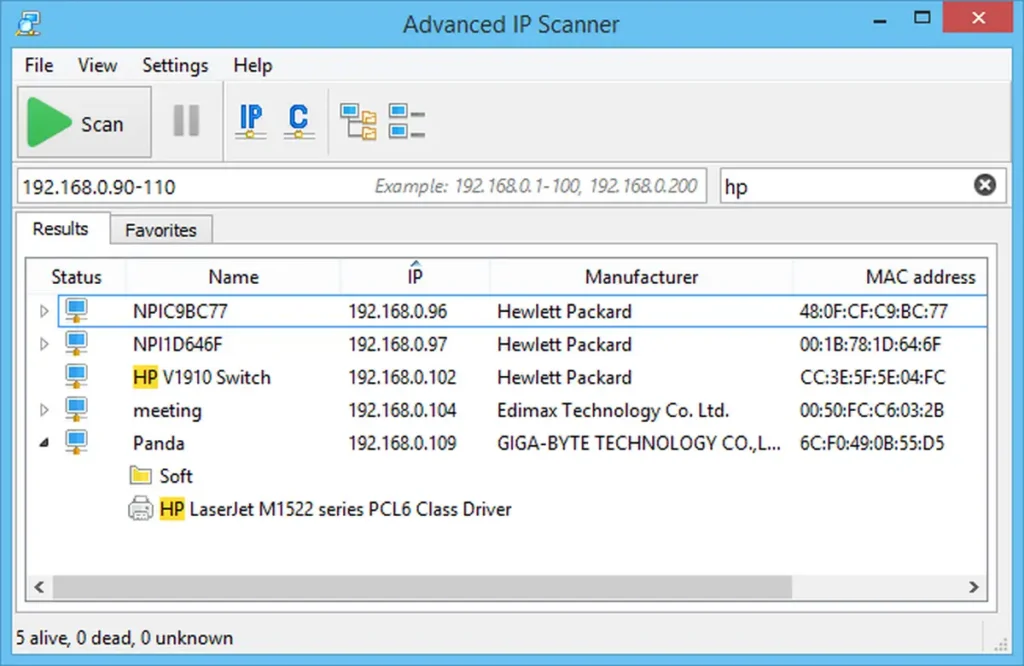
1. Advanced IP Scanner: Best for quick Windows LAN discovery
Advanced IP Scanner fits straightforward Windows discovery without platform deployment. I’d shortlist it for occasional local device lookup. Its portable option may also suit temporary administrative work.
- Best for: Quick Windows network checks and device lookup.
- Category: Desktop LAN discovery.
- Standout capabilities: Shared-folder access, portable operation, and remote-access shortcuts.
- Platform and license notes: Windows-focused software offered without a purchase fee.
You can access shared folders and use RDP or Radmin shortcuts. These options can connect discovery with familiar administrative tools. Still, they shouldn’t be confused with broader inventory management.
- Limitations: I wouldn’t choose it to manage organizational address assignments. A convenient device list and maintained IPAM records serve different purposes. That distinction matters when evaluating its apparent simplicity.
- Who should choose it: Consider it for narrow, Windows-based discovery needs. For example, you may want to locate office equipment. If your next question involves history or allocation, compare larger platforms.
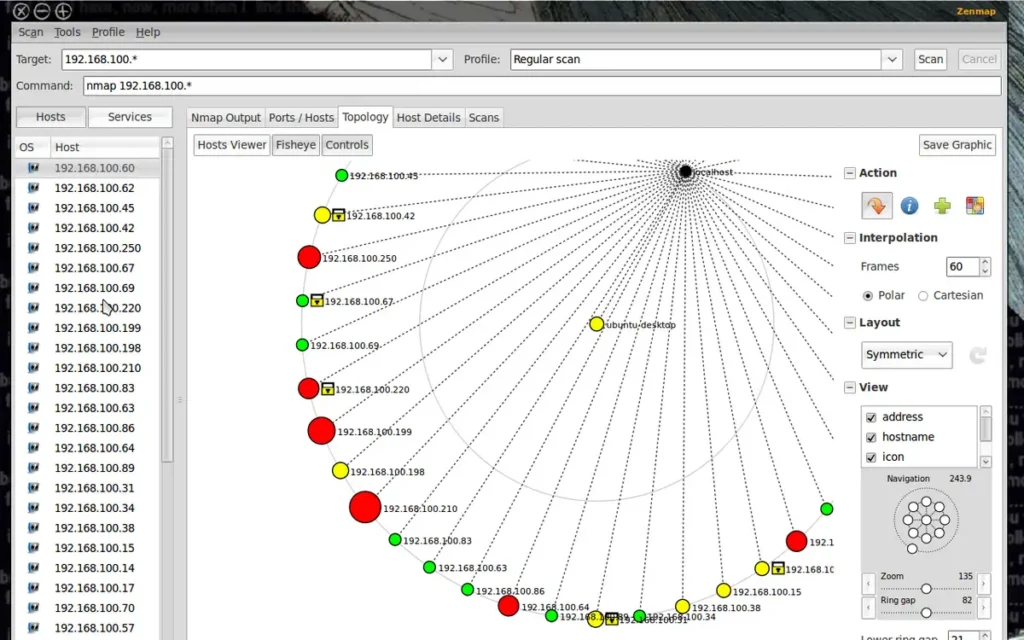
2. Nmap / Zenmap: Best for configurable technical discovery
Nmap fits users needing more control over discovery and diagnostics. I’d favor it when investigation requires technical detail. Its flexibility matters more than a simple one-button workflow.
- Best for: Technical administrators and authorized network assessment.
- Category: Host discovery and network diagnostics.
- Standout capabilities: Configurable discovery, service identification, and multiple operating-system options.
- Platform and license notes: Free end-user use under its published license.
The project offers command-line operation and the Zenmap interface. Its documentation covers discovery, service detection, and other inspection capabilities. As a result, you can investigate beyond basic device presence.
- Limitations: More configuration brings more decisions about scope and interpretation. I wouldn’t recommend it simply because it has more features. For occasional lookup, a simpler tool may feel more comfortable.
- Who should choose it: Consider Nmap if your team understands network diagnostics. Also, review its published license before commercial redistribution or embedding. The project distinguishes those activities from ordinary end-user use.
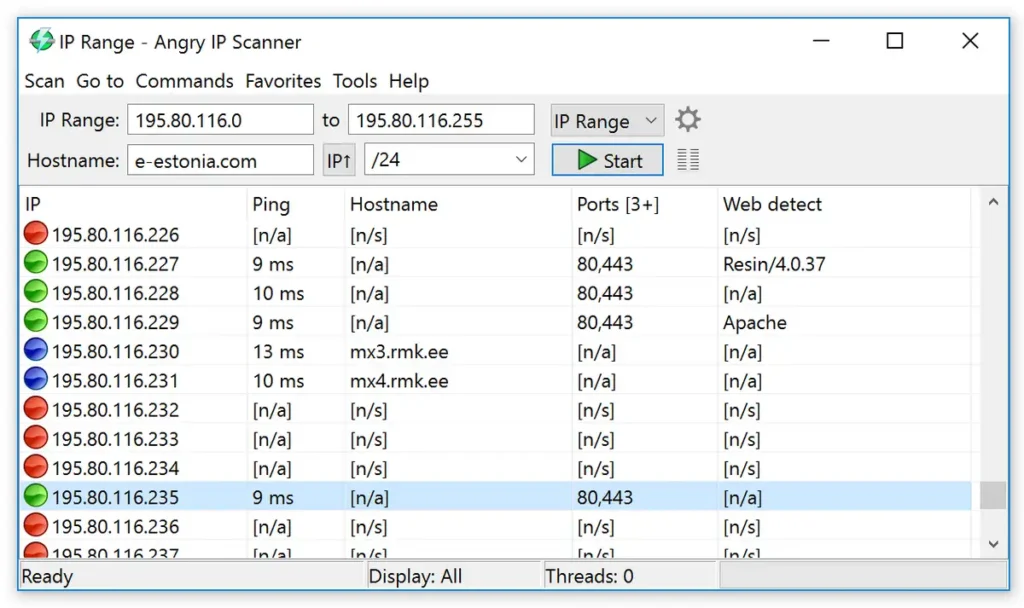
3. Angry IP Scanner: Best for simple cross-platform discovery
Angry IP Scanner suits teams wanting a familiar cross-platform scanner. I’d shortlist it when operating-system flexibility matters. Its interface focuses on discovery results rather than broader management.
- Best for: Straightforward scanning across different desktop environments.
- Category: Desktop IP and port scanner.
- Standout capabilities: Configurable information gathering, plugins, and several export formats.
- Platform and license notes: Windows, macOS, and Linux downloads are available.
According to Angry IP Scanner’s documentation, you can resolve hostnames and optionally check ports. You can also export CSV, TXT, or XML results. Plugins provide another option for extending collected information.
- Limitations: I’d treat exports as snapshots that need further interpretation. They don’t automatically become authoritative allocation or ownership records. If you need continuing reconciliation, compare inventory or IPAM platforms.
- Who should choose it: Consider Angry IP Scanner for mixed desktop environments. However, check the download package before planning installation requirements. Its Windows installer includes Java, while the standalone executable doesn’t.
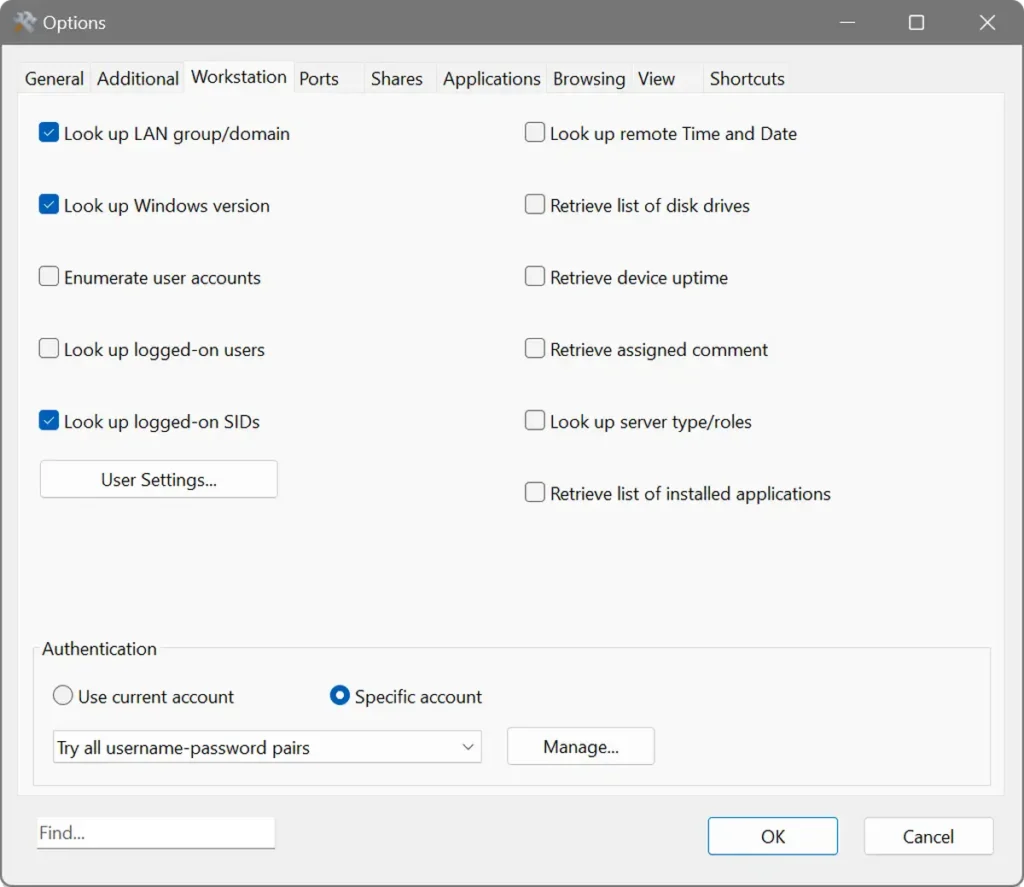
4. SoftPerfect Network Scanner: Best for detailed desktop discovery
SoftPerfect’s Network Scanner fits users wanting richer information within a desktop scanner. I’d shortlist it when basic address lists feel insufficient. Its documented capabilities extend into several management protocols.
- Best for: Detailed device information and configurable desktop discovery.
- Category: Commercial network scanner.
- Standout capabilities: Shared-folder discovery, port checks, and remote information gathering.
- Platform and license notes: Windows, macOS, and Linux packages are available.
SoftPerfect’s official product documentation lists WMI, SNMP, HTTP, SSH, and PowerShell support. You may use these capabilities to gather additional information. However, available features differ between platforms.
- Limitations: The vendor states that its trial displays 10 devices. So, trial output may not represent your full evaluation scope. That display restriction shouldn’t be mistaken for measured discovery performance.
- Who should choose it: Consider SoftPerfect when you need more detailed device information. Before purchasing, compare features on your intended operating system. That’s particularly useful when colleagues expect consistent cross-platform workflows.
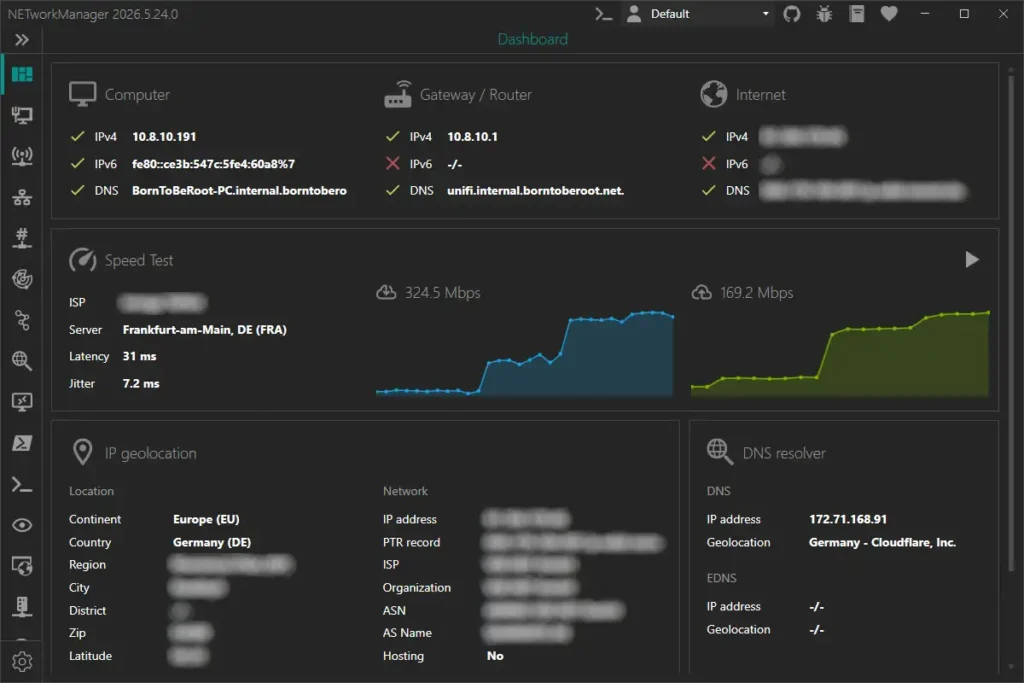
5. NETworkManager: Best for Windows troubleshooting across several tasks
NETworkManager fits administrators moving between several Windows network utilities. I’d shortlist it for recurring support work. It combines related workflows within one application.
- Best for: Windows troubleshooting and organized administrative profiles.
- Category: Network diagnostics toolkit.
- Standout capabilities: IP scanning, port scanning, ping monitoring, and DNS lookup.
- Platform and license notes: Open-source Windows software under GPL version three.
Their official project documentation also lists traceroute and Wi-Fi analysis. You can use host profiles to organize different environments. The project additionally documents signing for official binaries and installers.
- Limitations: A broad toolkit isn’t automatically a maintained asset database. If ongoing records matter, I’d compare dedicated platforms too. Your choice depends on whether troubleshooting or inventory comes first.
- Who should choose it: Consider NETworkManager when separate utilities interrupt your support workflow. One ticket, for instance, may involve discovery and DNS checks. Before wider deployment, you can review current release requirements.
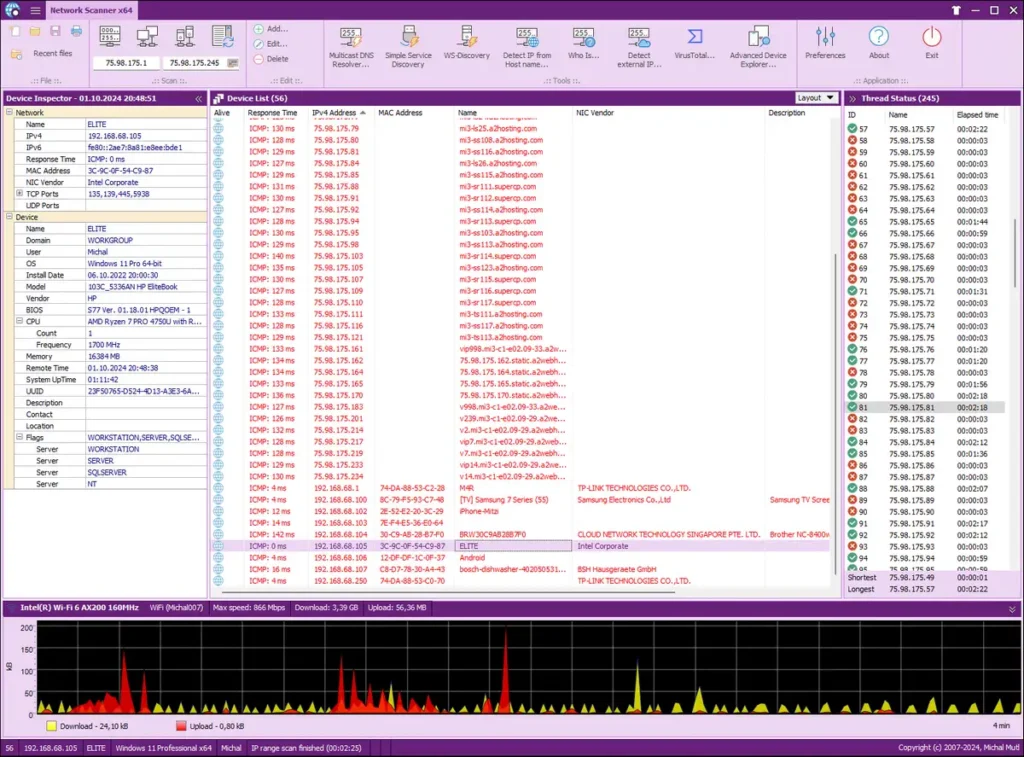
6. MiTeC Network Scanner: Best for Windows discovery with technical detail
MiTeC suits Windows users wanting discovery plus additional device information. I’d shortlist it for technical desktop investigations. Its licensing deserves more attention than “free tools” lists suggest.
- Best for: Windows network discovery and administrative diagnostics.
- Category: Scanner and device-information toolkit.
- Standout capabilities: ICMP, port, NetBIOS, Active Directory, and SNMP discovery.
- Platform and license notes: Commercial use requires a commercial license.
According to the official product page, you can export CSV results and resolve hostnames. The vendor also describes several device-information and management features. Available information still depends on access and device support.
- Limitations: The published compatibility list includes several older Windows releases. I’d validate your intended environment before wider deployment. A broad feature list doesn’t establish current-platform compatibility by itself.
- Who should choose it: Consider MiTeC when basic scanning lacks necessary context. You may value technical details alongside address discovery results. For business use, include licensing rather than assuming unrestricted freeware.
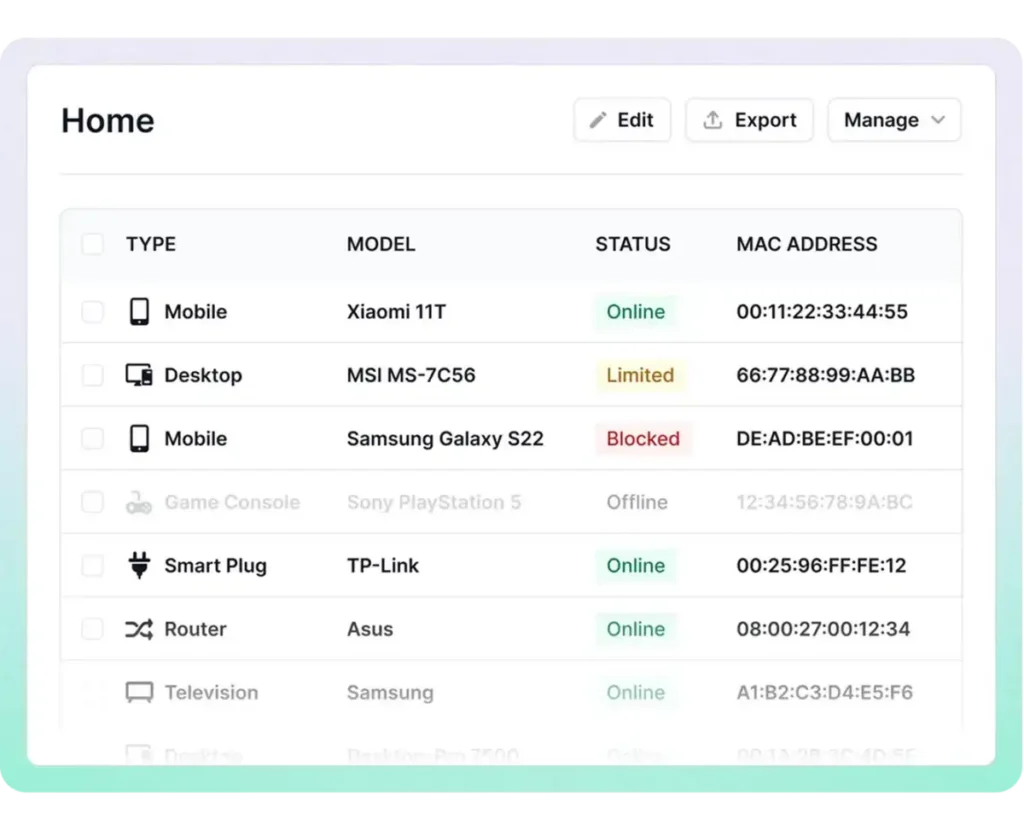
7. Fing Desktop: Best for approachable device recognition
Fing Desktop suits readers prioritizing recognizable device information and accessibility. I’d shortlist it for smaller, less specialized environments. However, its desktop and agent products need separate consideration.
- Best for: Accessible discovery in home and smaller-office settings.
- Category: Device discovery with monitoring options.
- Standout capabilities: Device recognition, event history, and network troubleshooting.
- Platform and license notes: Desktop downloads support Windows and macOS.
As Fing explains, monitoring continues while the application runs. You can also review its separate Fing Agent offering. Linux support comes through that agent, not Fing Desktop.
- Limitations: Fing describes its free desktop download as personal-use software. Advanced capabilities and deployment requirements deserve a separate plan review. So, I wouldn’t assume that arrangement suits organizational use.
- Who should choose it: Consider Fing when readable device information matters most. It may fit a small environment needing accessible, continuous visibility. For formal asset management, compare recordkeeping and business requirements carefully.
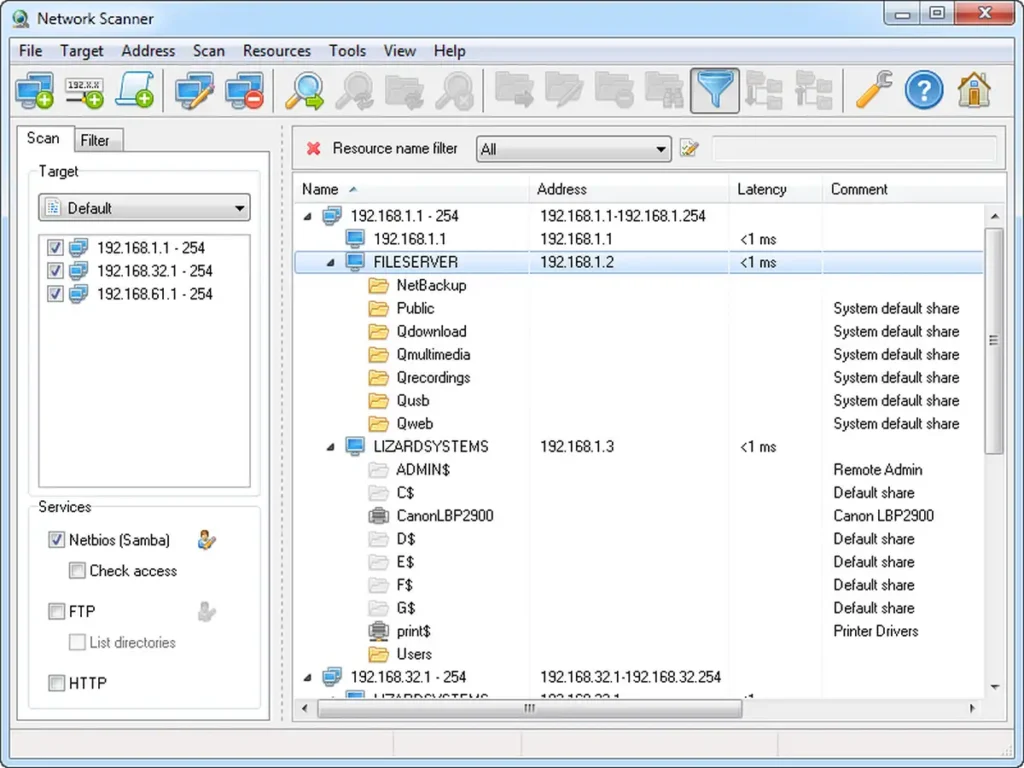
8. LizardSystems Network Scanner: Consider for legacy workflows, with caution
LizardSystems’s Network Scanner is a conditional option rather than a leading recommendation. I’ve included it because existing workflows may depend on it. Its release history changes how I’d evaluate new adoption.
- Best for: Reviewing an established Windows scanning workflow.
- Category: Desktop IP and resource scanner.
- Standout capabilities: Address-range scanning and network-resource inspection.
- Platform and license notes: Personal noncommercial and business licenses differ.
The vendor’s product documentation describes scanning addresses and network resources. You can also review separate personal and commercial licensing arrangements. Those distinctions matter when assessing an existing business installation.
- Limitations: According to LizardSystems’ published release history, version 21.07 dates to July 7, 2021. That doesn’t prove abandonment or establish a security problem. Still, it warrants questions about current support and compatibility.
- Who should choose it: Existing users may consider validating their current workflow. For new deployments, I’d compare more recently documented options first. You can ask the vendor about your intended operating system.
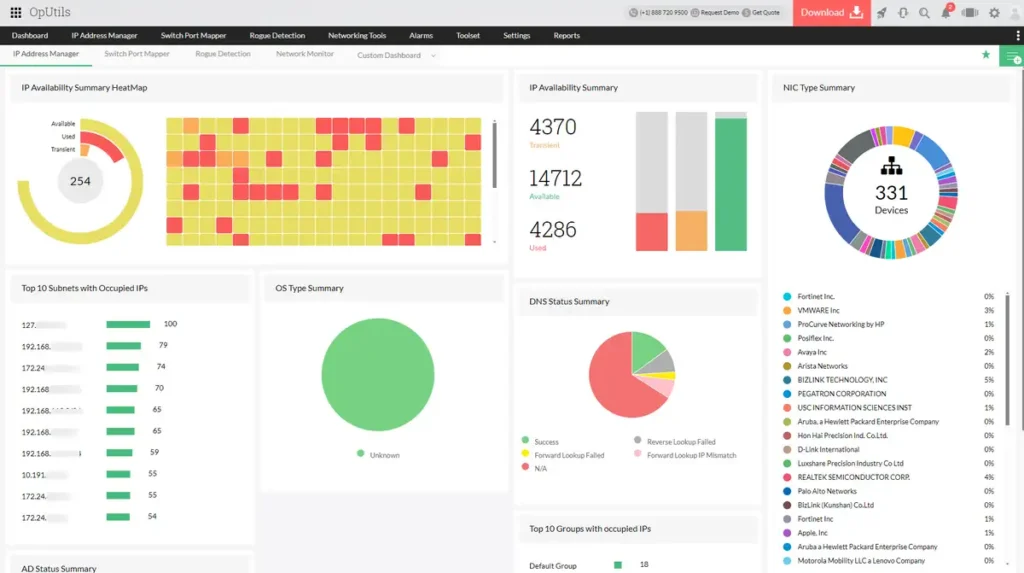
9. ManageEngine OpUtils: Best for IPAM and subnet visibility
OpUtils fits teams managing address usage beyond occasional discovery. I’d shortlist it when subnet records need recurring attention. It combines discovery with broader address-management functions.
- Best for: IP usage, subnet management, and switch-port context.
- Category: IPAM and network management.
- Standout capabilities: Scheduled discovery, IPv4/IPv6 support, and DHCP/DNS correlation.
- Platform and license notes: Edition capabilities need checking before deployment.
Through this tool, you can combine scans with utilization and switch-port information. Those details can connect addresses with their network context. That addresses a different need from exporting a desktop scan.
- Limitations: I’d allow time for scope and configuration decisions. Managing several subnets involves more than launching a discovery utility. You can also confirm which edition includes your required features.
- Who should choose it: Consider OpUtils when address management becomes a shared responsibility. Your team may need recurring subnet utilization reviews, for example. Its documented IPv6 management also supports dual-stack evaluations.
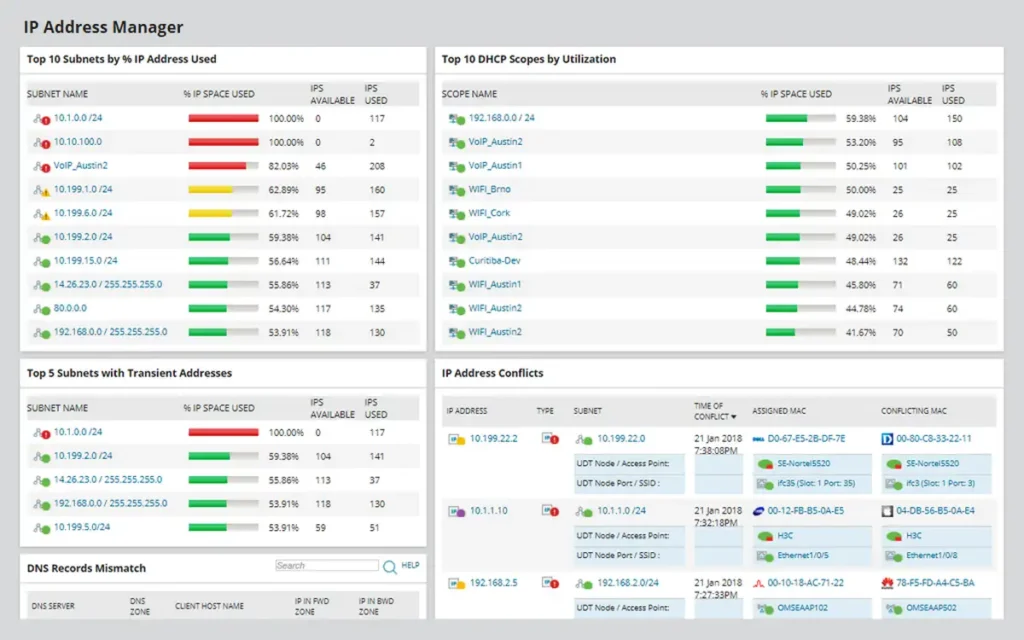
10. SolarWinds IP Address Manager: Best for coordinated address-management workflows
SolarWinds IPAM fits teams coordinating address records with DHCP and DNS. I’d shortlist it for ongoing administrative workflows. Its purpose extends beyond identifying devices that respond right now.
- Best for: Managed address space and related DDI operations.
- Category: IP address management.
- Standout capabilities: Address usage, DHCP reservations, DNS entries, and subnet organization.
- Platform and license notes: Runs on the self-hosted SolarWinds Platform.
The SolarWinds administrator guide describes ICMP, SNMP, and neighborhood scanning. You can also review credential requirements and address-import options. These capabilities connect observations with continuing management records.
- Limitations: Platform deployment and permissions need planning before useful evaluation. I wouldn’t choose it solely to locate occasional office equipment. Its management scope should justify the configuration work.
- Who should choose it: Consider SolarWinds IPAM when allocation records need coordinated management. During evaluation, you might follow an address through related workflows. That can reveal more than comparing initial discovery screens alone.
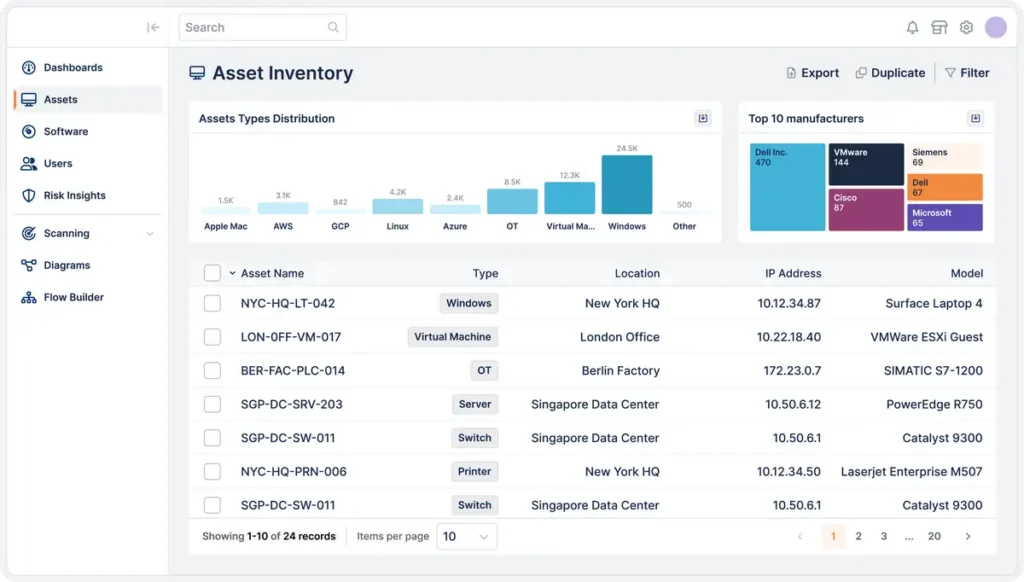
11. Lansweeper: Best for maintained asset inventory
Lansweeper fits teams needing ongoing records about equipment and software. I’d shortlist it when inventory is the actual objective. A one-time responding-host list can’t provide the same context.
- Best for: Ongoing IT, OT, and IoT asset visibility.
- Category: Asset discovery and inventory.
- Standout capabilities: Device metadata and centralized, regularly updated inventory.
- Platform and license notes: Commercial plans use subscription-based licensing.
According to their network discovery guide, discovery can collect hardware, operating-system, and software information. You can use that context for broader inventory questions. Finding an address becomes one part of the record.
- Limitations: Network-only discovery may miss frequently disconnected computers. Lansweeper’s separate agent documentation addresses endpoints outside the corporate LAN. I’d evaluate that distinction if your organization supports remote workers.
- Who should choose it: Consider Lansweeper when records must outlast individual scanning sessions. Before purchasing, you can review current plans and asset limits. Both discovery coverage and licensed functionality should influence your decision.
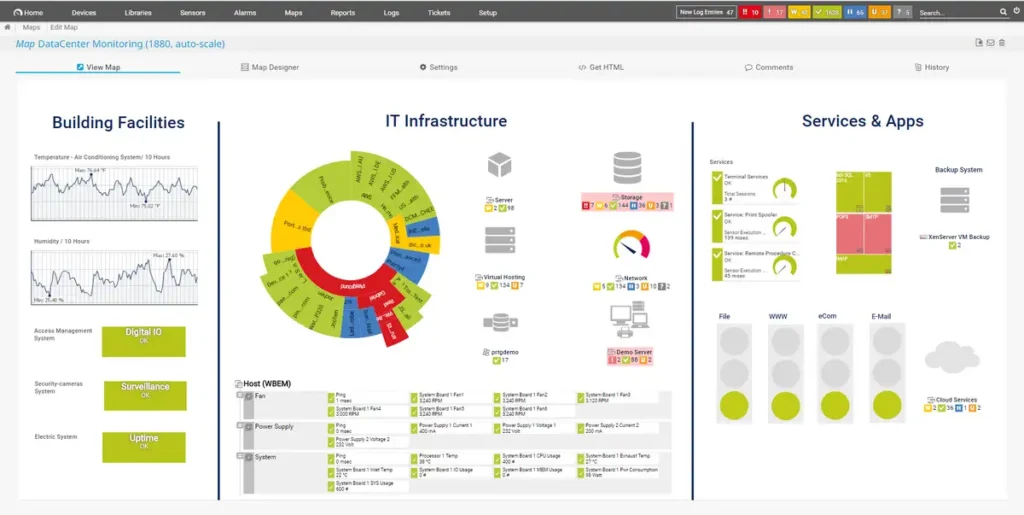
12. Paessler PRTG: Best when discovery should create monitoring
PRTG fits teams wanting discovered devices to receive ongoing checks. I’d shortlist it when visibility needs operational status too. Its monitoring model deserves attention before you compare prices.
- Best for: Discovery followed by continuing network monitoring.
- Category: Monitoring platform.
- Standout capabilities: Automatic device creation and recommended monitoring sensors.
- Platform and license notes: Commercial subscriptions and a limited freeware edition exist.
According to Paessler’s auto-discovery documentation, PRTG can create device-specific sensor sets. However, automatic discovery starts with ping reachability. A device blocking those requests may remain undiscovered.
- Limitations: Sensor totals aren’t equivalent to monitored device totals. Paessler’s licensing documentation specifies a 100-sensor freeware limit. Your coverage depends on the checks assigned across devices.
- Who should choose it: Consider PRTG when alerts and continuing checks matter. I’d evaluate representative devices and their required monitoring depth. Counting discovered addresses alone won’t establish your eventual monitoring requirements.
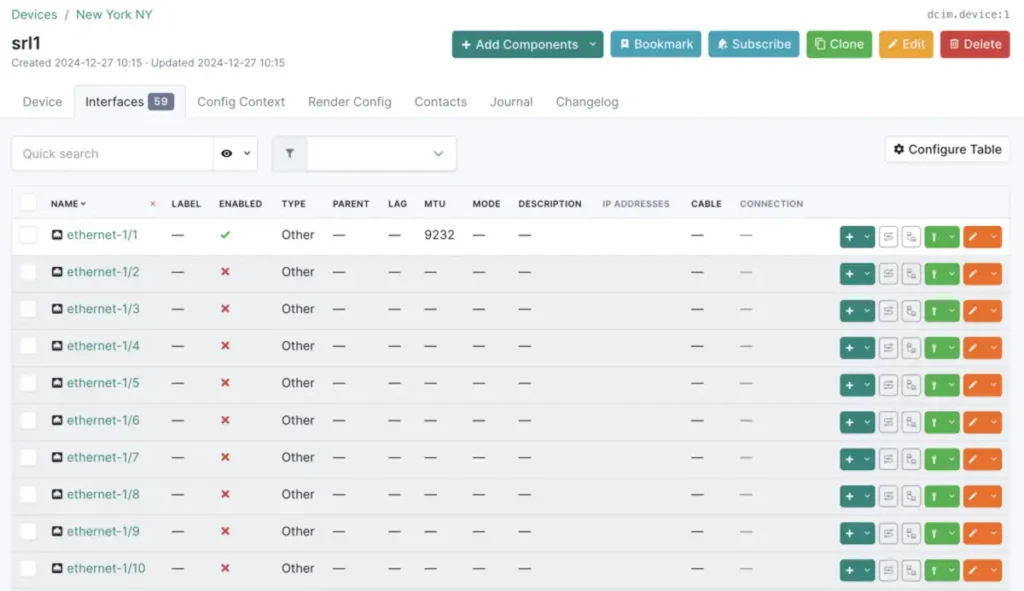
13. NetBox with Discovery: Best for structured network records
NetBox with Discovery fits teams maintaining a network source of truth. I’d shortlist it when discovery supports structured infrastructure documentation. It isn’t a direct substitute for a desktop scanner.
- Best for: Connecting discovered information with maintained network records.
- Category: Source-of-truth platform with discovery components.
- Standout capabilities: Ingesting discovery information into NetBox deployments.
- Platform and license notes: Requirements differ across Community, Cloud, and Enterprise.
As their setup guidance explains, deployment responsibilities vary between editions. Community users deploy supporting infrastructure, including agents and Diode components. Cloud and Enterprise arrangements have their own entitlement requirements.
- Limitations: Discovery adds infrastructure and record-management decisions. So, I wouldn’t recommend this approach for occasional device lookup. The supporting components should serve a clear documentation objective.
- Who should choose it: Consider NetBox when your team maintains structured network information. Discovery can then inform an established recordkeeping workflow. During evaluation, consider who reviews observations before accepting record changes.
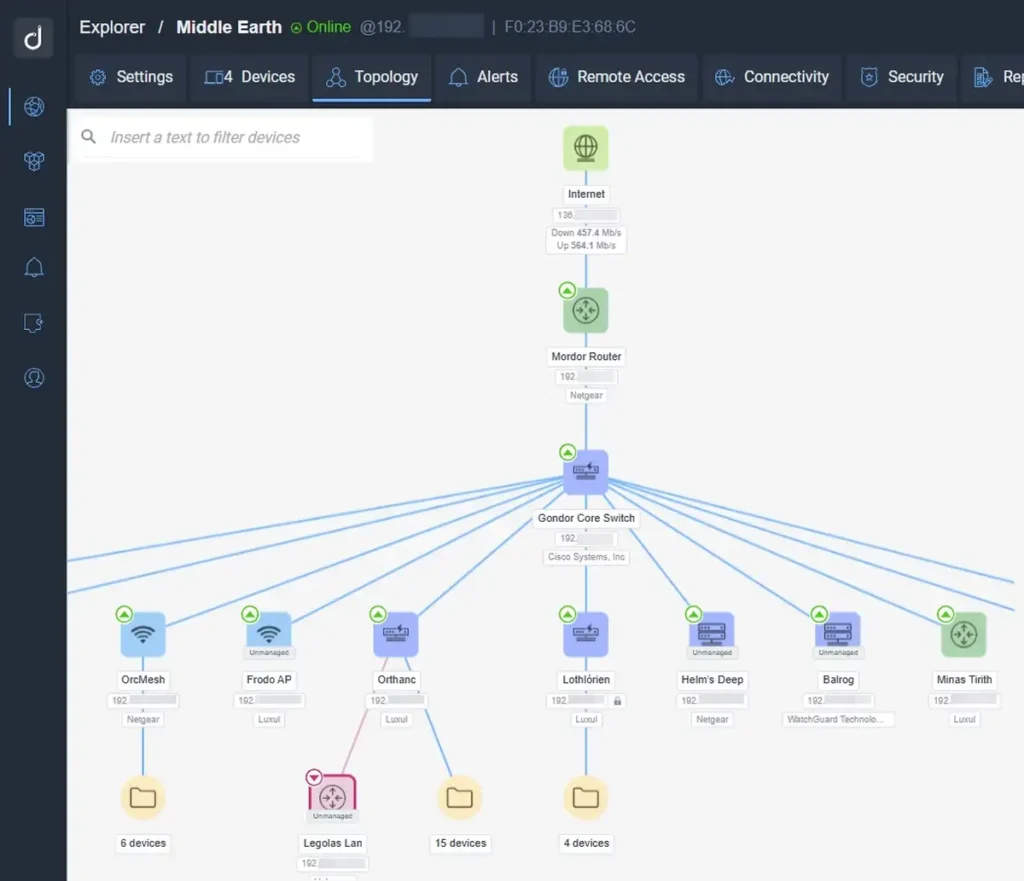
14. Domotz: Best for continuing discovery across managed sites
Domotz fits teams maintaining visibility across networks and customer sites. I’d shortlist it for continuing remote-network management. Its discovery approach emphasizes device identity beyond changing addresses.
- Best for: Managed service providers and distributed-site administrators.
- Category: Continuous discovery and network monitoring.
- Standout capabilities: Layer-two and layer-three discovery with device context.
- Platform and license notes: Current subscription and collection requirements need review.
The identification uses MAC addresses rather than IP alone. The vendor presents this approach as useful during DHCP changes. That can help when tracking devices across changing address assignments.
- Limitations: I’d validate collection coverage at each intended location. Distributed networks introduce more questions than a single-subnet trial. You can confirm which devices, sites, and functions your plan covers.
- Who should choose it: Consider Domotz when remote visibility is a continuing responsibility. For example, you may support several smaller customer environments. Compare collector placement and operational needs before headline subscription costs.
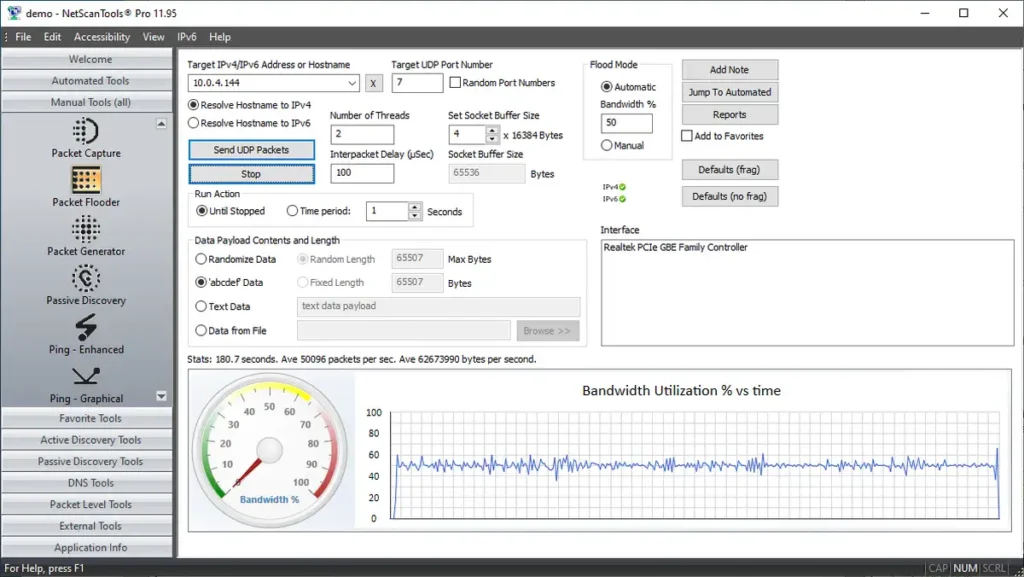
15. NetScanTools Pro: Best for a Windows diagnostic suite
NetScanTools Pro fits users needing discovery alongside several diagnostic utilities. I’d shortlist it for recurring Windows investigation work. Its value depends on whether you’ll use the broader toolkit.
- Best for: Administrators handling varied network diagnostic tasks.
- Category: Commercial Windows diagnostics suite.
- Standout capabilities: Discovery, DNS investigation, address research, and troubleshooting utilities.
- Platform and license notes: Some tools require additional packet-capture drivers.
Their product information describes active and passive discovery capabilities. You can also compare installation and portable arrangements there. The vendor doesn’t list a native macOS edition.
- Limitations: Some functions require WinPcap or Npcap drivers. I’d include those dependencies in your evaluation checklist. For occasional basic discovery, a suite may be unnecessary.
- Who should choose it: Consider NetScanTools Pro when several diagnostic tasks regularly overlap. Its revision history provides another useful maintenance reference. That history lists version 11.95.5, released May 1, 2026.
Choose direct Advanced IP Scanner alternatives before enterprise platforms
Angry IP Scanner and SoftPerfect are closer desktop comparisons. Nmap and NETworkManager also belong on relevant shortlists. IPAM platforms become appropriate when your underlying task changes.
That’s the distinction I’d use when narrowing the list. Switching tools and changing management approaches aren’t the same decision.
Choose another desktop scanner for a familiar discovery workflow
You may simply want a comparable tool on another system. Angry IP Scanner and SoftPerfect both publish cross-platform downloads. You can compare their installation requirements, features, and license terms.
In that situation, a longer feature list isn’t automatically better. The practical question is whether your usual task becomes easier.
Choose a technical toolkit for broader diagnostic questions
Nmap and NETworkManager provide capabilities beyond basic device lookup. That makes them relevant when troubleshooting drives your decision. Still, they aren’t necessary for every administrative task.
I’d ask what happens after you find the device. You may need service details, DNS checks, or another investigation. If nothing follows discovery, additional complexity may offer little benefit.
Choose IPAM when address records need continuing ownership
OpUtils and SolarWinds IPAM address recurring management needs. Their documentation describes address usage and related network context. They’re worth evaluating when spreadsheets or scan exports become inadequate.
For example, several administrators may coordinate workstation address assignments. Your records then need shared interpretation and continuing updates. Another desktop scanner alone may not resolve that process problem.
Keep complementary utilities out of direct-alternative comparisons
A useful network utility isn’t automatically a discovery substitute. I’d compare products against the question you’re answering. DNS lookup, connectivity diagnosis, and inventory serve different objectives.
You can still use those utilities together when needed. They just shouldn’t receive identical scores for different jobs.
Treat missing devices as a coverage question, not an empty-network verdict
A discovery scan doesn’t automatically establish complete network coverage. Results depend on reachability, configuration, and the discovery method. You’ll get more useful conclusions by considering those conditions.
For instance, missing equipment may need further investigation. It doesn’t necessarily mean the equipment has disappeared.
Ping reachability can limit discovery results
Paessler states that blocked echo requests can prevent PRTG’s automatic discovery. So, “not discovered” doesn’t always mean “not present.” That limitation matters when reviewing an expected device list.
Suppose a known workstation doesn’t appear in your results. I’d treat its status as unresolved during review. That avoids turning an incomplete observation into certainty.
Local and routed discovery may provide different details
Paessler’s documentation notes that ARP generally operates within local networks. It also explains additional considerations for discovering other subnets. As a result, scanner placement can affect available device information.
A small local trial therefore answers only limited questions. I’d include representative segments in an approved evaluation. Otherwise, your results may not reflect the intended deployment.
Off-network devices may need another collection approach
Lansweeper positions agent discovery for disconnected or remote endpoints. That offers an alternative to relying only on LAN scans. Remote-working environments deserve this distinction during product selection.
So, consider where your equipment actually operates. A tool can suit office networks yet need additional components elsewhere.
IPv6 deserves its own capability check
ManageEngine documents both IPv4 and IPv6 address management. SoftPerfect similarly describes support for both protocols. However, support doesn’t mean every feature behaves identically.
I’d ask about the discovery workflow you actually need. A checked “IPv6” box rarely explains every operational detail. Your evaluation can focus on the addresses and records you manage.
Evaluate candidates with the same practical checklist
A consistent evaluation can reveal more than generic product scores. I’d compare representative devices and clearly defined outcomes. The exercise below is a suggested method, not completed testing.
You can organize an authorized evaluation like this:
- Define your permitted scope and intended outcome. Identify the networks and business questions you’re evaluating.
- Choose representative devices from approved environments. Include examples relevant to your actual administrative responsibilities.
- Record each candidate’s configuration and version. Comparable notes can make later differences easier to interpret.
- Compare results against your existing records. Separate missing equipment from unexpected discoveries.
- Check information quality, not just result totals. Names, duplicates, and useful context deserve separate attention.
- Review the export or continuing-management workflow. Assess what happens after initial discovery.
- Document limitations before choosing a product. Unresolved coverage questions may matter more than interface preference.
Use evaluation fields that reveal operational differences
I’d record the same fields for every shortlisted candidate. That gives you a fairer basis for comparison. It also avoids treating one result count as the whole story.
| Evaluation field | Question it helps answer |
|---|---|
| Expected devices discovered | Did it find the equipment you anticipated? |
| Missing devices | Which observations need further investigation? |
| Device identity | Are names and identifiers useful for your workflow? |
| Duplicate records | Does the result need manual reconciliation? |
| Export usefulness | Can colleagues work with the collected information? |
| Ongoing records | Can the product support your required management process? |
| Dependencies | What accounts, agents, or drivers are involved? |
| Licensing fit | Does your proposed use match current terms? |
You may also record the work required after discovery. For instance, a clear export could save manual cleanup. Alternatively, continuing records may matter more than export formatting.
Keep speed claims tied to documented conditions
I haven’t measured these products on a shared test network. That’s why I’m not declaring a fastest scanner here. I’d publish timings only alongside their exact conditions.
A useful comparison could state scope, configuration, and expected devices. It should also distinguish discovery from later information collection. Readers can then judge whether those conditions resemble their environment.
Likewise, a larger result count doesn’t automatically prove better accuracy. You’d need to examine duplicates, unexpected records, and known omissions. Those details make performance claims easier to interpret.
Check licensing and maintenance before committing
License terms and product-specific release histories can change your shortlist. A free download may have commercial restrictions. Likewise, a current website doesn’t establish every product’s maintenance status.
These checks are worth making before wider deployment. They can reveal questions that feature tables leave unanswered.
Compare the billing unit with your actual requirement
Paessler’s freeware limit concerns sensors rather than device counts. SoftPerfect’s trial instead limits how many devices appear. Those restrictions measure different things, so direct comparisons can mislead.
Before purchase approval, I’d review these points:
- Permitted use: Personal, educational, commercial, or another defined category.
- Relevant unit: Devices, sensors, sites, users, or another contractual measure.
- Feature access: Required capabilities within the selected edition.
- Update entitlement: Whether future releases require an active arrangement.
- Deployment costs: Time and infrastructure beyond the advertised license.
The cheapest license may not create the lowest overall cost. Equally, a larger subscription may include features you won’t use. Your actual workflow provides the better comparison.
You can make that comparison concrete with a short requirements list. Then, ask which edition satisfies those requirements. That’s more useful than comparing entry-level prices alone.
Review product-specific evidence of maintenance
A current company homepage doesn’t establish every product’s release status. LizardSystems’ Network Scanner history shows why product-level checks matter. Its published latest release remains dated July 7, 2021.
That warrants clarification without proving the product is unsafe. I’d retain the source and verification date internally. Those notes make future reviews easier to audit.
For any shortlisted product, you can review available release notes. You may also ask about supported operating-system versions. The goal is practical compatibility, not rewarding frequent releases automatically.
Confirm authorized scope and review how collected data is handled
Discovery should stay within your organization’s approved operating boundaries. You can define that scope before evaluating any product. Then, everyone involved has the same reference for the work.
Nmap’s legal documentation discusses permission and related scanning considerations. Your own approval process can turn those concerns into practical boundaries.
Confirm scope before collecting network information
You can keep preparation straightforward with a short checklist:
- Confirm authorization for the intended networks.
- Identify an evaluation owner and suitable review period.
- Agree how unexpected results will be handled.
- Define where exported information may be stored.
I’d keep those decisions alongside the evaluation notes. That gives colleagues context when interpreting unexpected results. It also helps distinguish approved work from accidental scope expansion.
Check publishers and dependencies before installation
Official project pages provide a useful starting reference. NETworkManager documents signed binaries, while NetScanTools lists driver dependencies. Those details may affect your software approval process.
For cloud-connected products, you can also review data-processing terms. I’d ask where inventory information is stored and accessed. The appropriate arrangement depends on your organization’s requirements.
You may also consider who can download or share exports. That keeps the review focused on the complete workflow. Installing the scanner is only one part of managing its output.
These FAQs answer common IP scanner selection questions
Your task provides a better starting point than a universal ranking. These answers summarize the distinctions that most affect selection. You can use them to narrow your evaluation.
-
1. What’s the best IP scanner for Windows?
I’d shortlist Advanced IP Scanner for simple Windows discovery. NETworkManager suits readers wanting several related troubleshooting utilities. For more technical investigation, Nmap deserves separate consideration.
Their documented capabilities support different needs rather than one universal winner. So, start with the task you’ll perform most often. -
What’s the best free cross-platform IP scanner?
Angry IP Scanner is a practical starting recommendation. Its official downloads support Windows, macOS, and Linux. I’d compare package requirements against your intended installation workflow.
-
Can an IP scanner find every connected device?
You shouldn’t assume complete coverage from one discovery result. Paessler documents hosts PRTG can’t discover when ping is blocked. Nmap’s documentation likewise explains why discovery methods matter.
If a known device is missing, its status needs clarification. That’s more useful than assuming it isn’t connected. -
Is IPAM the same as an IP scanner?
IPAM supports continuing address-management records and related workflows. SolarWinds documents DHCP reservations, DNS entries, and organized subnet information. A discovery scanner focuses more narrowly on observed hosts.
So, the choice depends on what follows your scan. If records need continuing management, IPAM may fit better. -
Does PRTG’s free edition cover 100 devices?
Its documented freeware limit is 100 sensors, not devices. Several checks may apply to a single device. Your eventual coverage depends on the monitoring you configure.
-
Can you use MiTeC free for business?
MiTeC’s published license requires payment for commercial usage. It permits free private, educational, and noncommercial use. I’d check those terms before approving business deployment.
-
Should you reject software because its release history looks old?
An older release date alone doesn’t establish a security problem. However, I’d request current support and compatibility information. For LizardSystems Network Scanner, the published date warrants that conversation.
Final verdict: Choose the simplest tool that answers your continuing need
A desktop scanner is a sensible starting point for straightforward discovery. Advanced IP Scanner and Angry IP Scanner fit that shortlist. Nmap suits readers needing more configurable technical investigation.
If your questions continue beyond discovery, the shortlist changes. IPAM can support address management, while inventory maintains asset information. Monitoring adds ongoing checks when operational status matters.
My recommendation is to shortlist by task, then evaluate consistently. You can prioritize useful records, clear limitations, and suitable licensing. The best fit answers your question without adding unnecessary work.