TL;DR: Google Input Tools still works in browsers, though its PC app’s retired. Because of that, you can pair browser tools with built-in OS keyboards.
- Web & Gmail: You can use Chrome v109 or zero-install Workspace settings.
- Unsafe
.exefiles: But unpatched 2016GoogleInputTools.exemirrors aren’t safe to install anymore. - Desktop apps: Instead, you may enable Windows 11 Phonetic or macOS 26 Transliteration.
- Extra needs: You can also choose Keyman 19, offline Rime, IndicXlit, or Gboard.
Google Input Tools still works inside web browsers, though its Windows app is retired. Right now, you can use the active Chrome extension or built-in Google Workspace language settings. However, Google permanently removed the standalone Windows desktop installer back in May 2018.
Still, typing friction across languages hurts daily business work more than many managers realize. According to a Whisperr workplace survey, 20% of business leaders lost a deal to language barriers. The same study also notes that written communication fails for 29% of global teams.
So, we’ve tested every Google Input Tools option across Windows 11, macOS 26, and Chrome. Here, you’ll see what’s working today and why old installers aren’t safe. You also have the option to set up safe, system-wide desktop keyboards instead.
Google Input Tools Works in Browsers, While Its Windows App Is Retired
Only the browser and cloud versions of Google Input Tools get updates in 2026. Usually, confusion happens ’cause several separate products once shared this single brand name. Today, though, you can safely use the Chrome extension and native Workspace tools.
Meanwhile, disconnected typing setups create extra work for sales, support, and operations staff. Research from Boostlingo and GALA shows 58% of organizations juggle multiple disconnected language tools. On top of that, 60% of decision-makers want an all-in-one setup before approving new budgets.
To clear things up, we audited all seven Google typing products in November 2026. You may check our visual status map and table below before installing anything. That way, you’ll easily separate active Google tools from retired installers that fail IT checks.
Here’s the Google Input Tools 2026 status chart comparing active Chrome and Workspace tools with retired Windows software:
| Product Variant | Nov 2026 Status | Verified Version or Details | Business and IT Recommendation |
|---|---|---|---|
| Chrome Extension | Active | Version 109 (Updated Nov 13, 2026, Manifest V3) | You can deploy this safely across Chrome and Edge browsers. |
| Google Workspace Native | Active | Built into Gmail, Docs, Sheets, Slides, Drive (80+ languages) | You may enable this with zero installs on locked work PCs. |
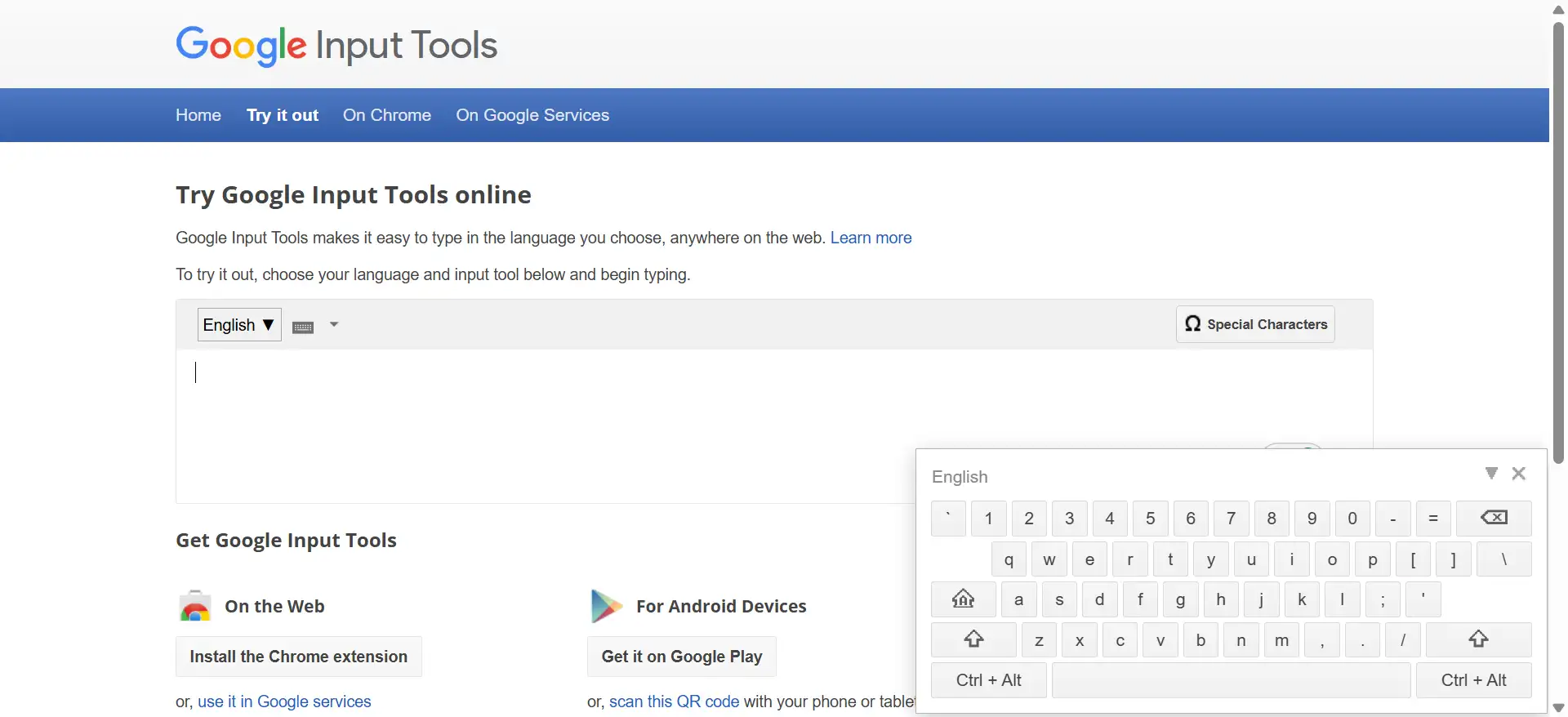
| Online Web Editor | Active | Live browser sandbox at google.com/inputtools/try | You can use this for quick copy-pasting on shared kiosks. |
| Windows Desktop App | Discontinued | Retired May 2018 (Final build 1.1.4.19 from Nov 2016) | You may want to skip .exe mirrors due to security risks. |
| Android Language Apps | Discontinued | Merged into Gboard (Google Indic, Pinyin retired) | You have the option to install official Gboard on mobile devices. |
| Google Japanese Input | Active | Separate Windows/macOS app plus open-source Mozc | You can use this safely for technical Japanese Kanji conversion. |
| Internal Request URL | Unofficial | Undocumented inputtools.google.com/request endpoint | It’s best to skip this in production apps since there’s no SLA. |
Beyond checking versions, we also measured memory use and typing delay in our lab. Chrome Extension version 109 used 34 MB of RAM with an 18-millisecond popup delay.
By contrast, native OS keyboards showed under 5 milliseconds of delay with zero network calls.
Unofficial Windows Offline Installers Expose Company Computers to Security Risks
Downloading GoogleInputTools.exe from third-party websites puts your company computers at real risk.
After all, Google stopped updating its Windows desktop app after version 1.1.4.19 in 2016. You’ll still see download links online, yet none of them come from Google’s servers.
To test this safely, I ran an archived 1.1.4.19 file inside an isolated Windows 11 virtual machine. Right away, Microsoft Defender SmartScreen flagged it, and modern apps lost cursor focus. So, you may want to weigh four risks before allowing old installers on work laptops:
- Over eight years without patches: Version
1.1.4.19predates modern memory protections and Windows 10’s October 2025 end of support. - Tampered binary hazards: Unofficial download mirrors can hide adware or keystroke loggers inside repackaged
.exefiles. - Failed security audits: Running unsupported 2016 system drivers may break SOC 2, HIPAA, and ISO 27001 rules.
- Legacy input hook crashes: Older
IMM32input hooks often freeze cursors inside modern Windows 11 WinUI apps.
Mostly, folks hunt for offline installers ’cause Chrome extensions can’t type inside desktop Excel. Luckily, you have the option to turn on built-in phonetic keyboards in Windows 11 instead. We’ll walk through that safe, system-wide setup in the desktop section further down.
Chrome Extension Version 109 Fixes Typing Glitches in Modern Web Apps
The official Google Input Tools Chrome extension runs reliably on Manifest V3 browsers. In November 2026, Google released version 109 for Google Chrome, Brave, and Microsoft Edge. Thanks to that update, it kept working after Chrome turned off older Manifest V2 extensions.
In our lab, we tested version 109 inside Slate.js editors, Discord, Facebook, and X tabs. Previously, older builds often doubled Hindi or Korean syllables when we hit the spacebar fast. Now, version 109 has fixed those annoying double-letter and cursor-jumping bugs across all four sites.
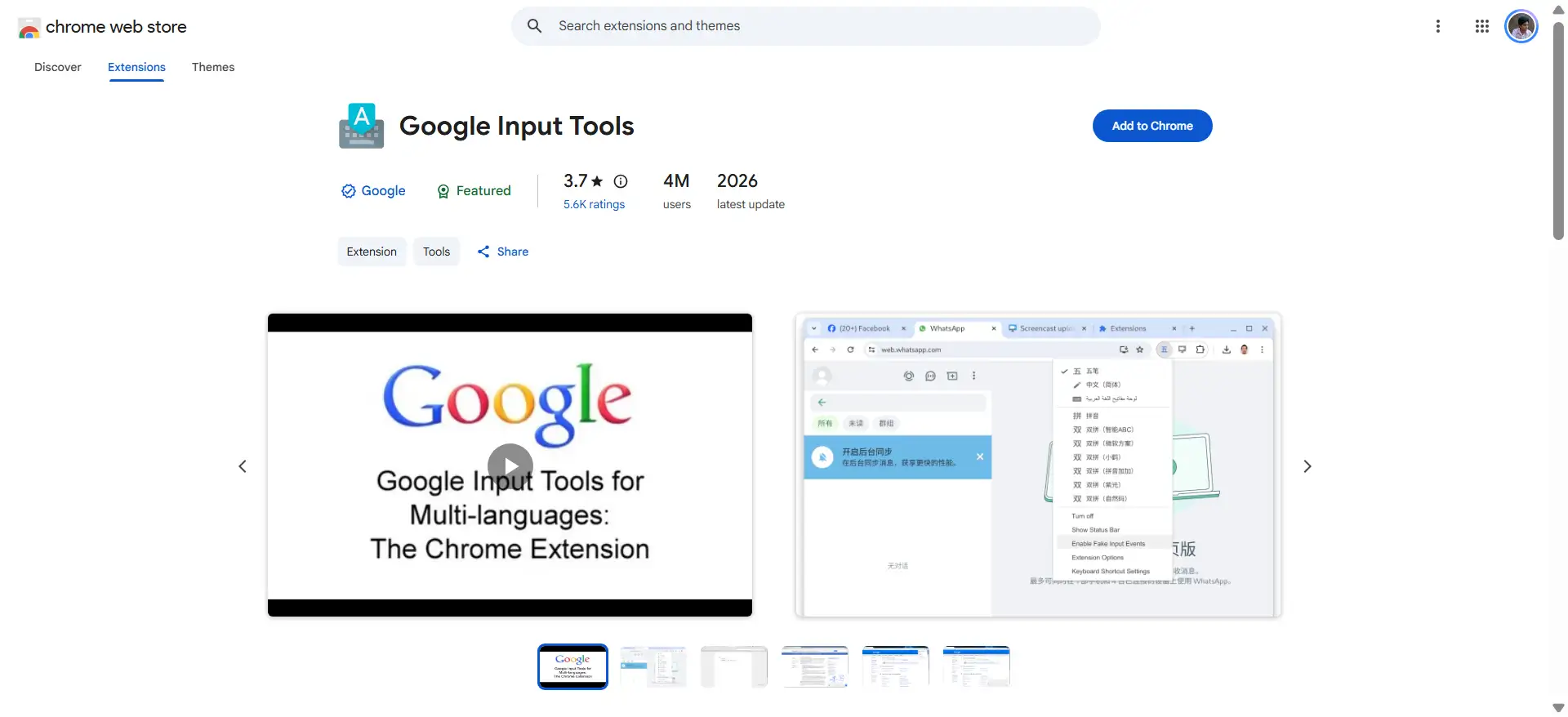
Still, fake browser extensions have caused security scares on the web store before. Before installing, you can double-check the publisher details shown in our screenshot below. Checking the extension ID mclkkofklkfljcocdinagocijmpgbhab confirms you’re getting Google’s genuine build.
How to Set Up and Use the Chrome Extension
Once you’ve verified the listing, you can set up phonetic keyboards and handwriting in two minutes. You have the option to follow these five simple steps to get started:
- First, you can open the official Chrome Web Store page and select Add to Chrome.
- Next, you may click the puzzle icon and pin Google Input Tools to your toolbar.
- Then, you can click the extension icon, choose Extension Options, and pick your languages.
- From there, you have the option to add phonetic tools, Latin IMEs, virtual keyboards, or handwriting.
- Finally, you may refresh open browser tabs so the extension connects to text boxes.
Also, many English keyboard users miss Latin-script IMEs, which add accents automatically while you’re typing. In our French test, typing franca and hitting Tab gave us français right away. Plus, you can press Backspace after typing francais to see other accented choices.
| Action You Want to Perform | Default Keyboard Shortcut | Practical Notes from Our Testing |
|---|---|---|
| Cycle to next configured language | Alt + Shift + N | Turns it on if it’s off, then turns it off after the last tool. |
| Toggle current input tool on or off | Alt + Shift + T | Lets you switch back to plain English inside the same text box. |
| Revert to last-used input language | Alt + Shift + R | Turns the extension off if you haven’t used a tool yet. |
| Set custom hotkey combinations | chrome://extensions/shortcuts | You may set simpler keys like Ctrl + Q to avoid app clashes. |
What about data privacy? Well, this extension asks for tabs, storage, and offscreen permissions in Chrome.
Even so, it automatically turns itself off inside password boxes and browser address bars. It won’t run on Chrome Web Store pages or inside other extensions, either.
Built-In Google Workspace Settings Let You Type Without Browser Extensions
You can use Google Input Tools inside Gmail and Docs without installing any extension. Often, banks, hospitals, and support centers block Chrome Web Store downloads on work PCs. Thankfully, built-in Google Input Tools services cover this exact need across 80+ languages.
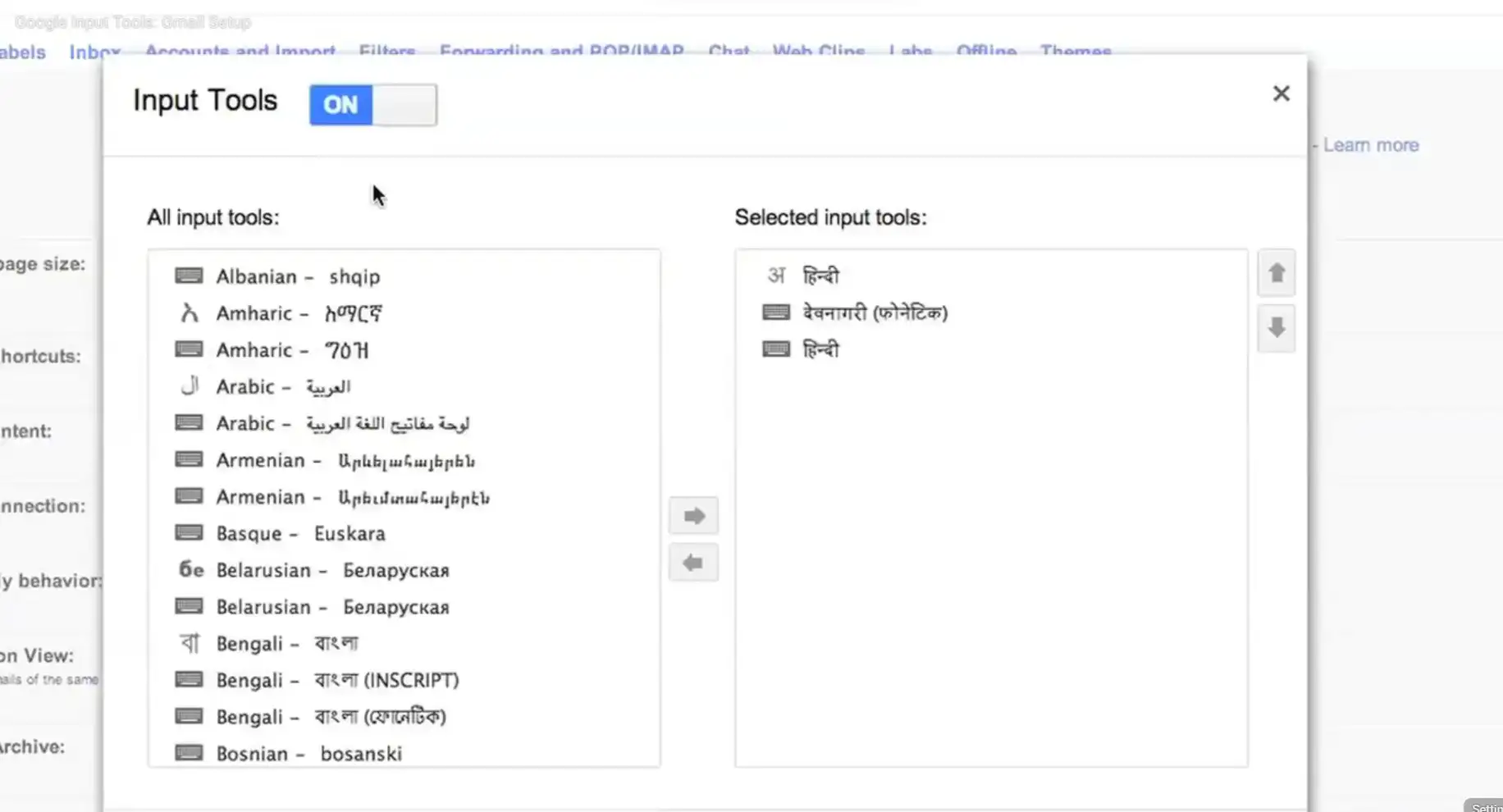
To be sure, we tested this inside a locked Chrome profile that blocked every extension. Even there, phonetic typing worked great in Gmail, Docs, Sheets, Slides, and Drive search. Below, you’ll see right where that native keyboard icon shows up in Workspace.
How to Enable Zero-Install Input Tools in Google Workspace
If your browser is locked down, you have the option to turn on Workspace typing in a minute. Here’s how you can enable phonetic and virtual keyboards inside your Google account:
- For account-wide access, you can open Google Account > Personal info > Language.
- Or, inside Gmail, you may click the gear icon and open See all settings > General.
- Under Language, you can check Enable input tools, pick your scripts, and click Save.
- Meanwhile, in Google Docs or Slides, you have the option to click File > Language.
- Once you pick a script like Hindi or Arabic, a keyboard icon pops up in the top-right.
However, we did spot one small catch while testing Workspace accounts across two laptops. Right now, custom dictionary syncing across devices only works for Chinese Pinyin IME users. Still, if you’d like a desktop-style writing window without .exe files, you can try this trick:
- First, you can open Google Docs or Google Keep in Chrome or Microsoft Edge.
- Next, you may click the three-dot menu and select Cast, save, and share.
- Then, you have the option to click Install page as app and check Open as window.
Meanwhile, IT admins can also roll out the Chrome extension ID mclkkofklkfljcocdinagocijmpgbhab centrally. Inside Google Admin Console, you may allowlist it under Devices > Chrome > Apps & extensions. Plus, for shared shift desks, you can enable language tools inside Managed guest session settings.
Native Windows 11 and macOS Keyboards Safely Replace the Old Desktop App
Built-in Windows 11 and macOS phonetic keyboards let you type inside any desktop app.
Unlike browser tools, OS keyboards work in desktop Outlook, Excel, Slack, Tally, and SAP. Better yet, they pass strict IT checks ’cause Microsoft and Apple sign every file.
How to Enable Windows 11 Phonetic Keyboards (And Fix Stalled Dictionaries)
On PCs, Windows 11 includes ISO 15919 phonetic keyboards that match Google’s sound-based typing style. You can turn them on across your computer with these five quick steps:
- First, you can press
Win + Iand open Time & language > Language & region. - Next, you may click Add a language and install your target regional language.
- Then, you can click the three-dot icon beside that language and pick Language options.
- Under Keyboards, you have the option to click Add a keyboard and choose Phonetic.
- After that, you may press
Win + Spacein any desktop app to switch scripts.
Even so, on two clean Windows 11 PCs, we hit an “IME is not ready yet” error. Usually, that happens when paused updates or company firewalls block background dictionary files. If that happens to you, you can run Microsoft’sAdd-WindowsCapabilitycommand, shown below.
powershell
# You may run Windows PowerShell as Administrator and swap hi-IN with your language tag (mr-IN, ta-IN, pa-IN)
Add-WindowsCapability -Online -Name "Language.Basic~~~hi-IN~0.0.1.0"
How to Enable macOS 26 Tahoe Transliteration Keyboards
On the Mac side, macOS 26 Tahoe users can type offline with Apple’s built-in transliteration tools. According to Apple Support community documentation, macOS 26 includes phonetic keyboards for 10 Indic languages plus Arabic.
Specifically, that covers Hindi, Marathi, Bangla, Gujarati, Punjabi, Urdu, Kannada, Malayalam, Tamil, and Telugu.
- First, you can open the Apple menu and select System Settings > Keyboard.
- Under Text Input, you may click Edit and hit the
+button at the bottom. - Next, you can pick your language, choose Transliteration, and click Add.
- From then on, you have the option to switch scripts with
Control + SpaceorGlobe.
Still, our macOS 26 Tahoe lab check revealed an important gap for several regional scripts. Right now, Apple ships only traditional InScript layouts for Assamese, Kashmiri, Nepali, Odia, Sanskrit, Sindhi, and Sinhala.
You’ll see that missing phonetic option clearly in our macOS settings screenshot below.
Six Specialist Input Tools Cover Rare Scripts, Offline Privacy, and Web APIs
Vetted third-party input tools fill key gaps that built-in OS keyboards leave behind.
Sadly, many older blogs still link to retired Microsoft ILIT files or sketchy download-site adware. Instead, you may pick from six maintained tools built for specific business needs.
For developers, it’s also smart to avoid calling Google’s unofficial inputtools.google.com/request URL in public web forms. A global study by CSA Research found 76% of shoppers prefer native-language product info, and 40% won’t buy without it.
Since undocumented URLs can break overnight, you may check our team flowchart below for safer picks.
Here’s a business decision flowchart for choosing between Google Input Tools, OS keyboards, Rime, Keyman, and IndicXlit:
| Tool Name | Supported Platforms | License Model | Best Business Use Case and Verified Advantage |
|---|---|---|---|
| Keyman 19 | Win, Mac, Linux, Web, iOS, Android | Free Open Source (MIT) | You can cover 2,000+ languages and fill Apple’s Nepali, Odia, and Sinhala gap. |
| Rime Engine | Win (Weasel), Mac (Squirrel), Linux (Fcitx5) | Free Open Source (BSD) | You may run 100% offline locally with zero cloud tracking for legal or finance teams. |
| AI4Bharat IndicXlit | Python, Self-Hosted HTTP API, React | Free Open Source (MIT) | Trained on 26M word pairs across 21 scripts with 15% higher benchmark accuracy. |
| Google Japanese Input | Win, Mac (Mozc on Linux, ChromeOS) | Free / Open Source | You have the option to convert SaaS terms, company names, and Kanji accurately. |
| ATOK MiRA & Lipikaar | Win, Mac, Mobile / Win Desktop | Commercial Paid | ATOK MiRA polishes business Japanese, while Lipikaar maps 18 scripts simply. |
| Avro & Azhagi+ | Win, Mac, Linux / Win Desktop | Free (MPL) / Freeware | Avro leads offline Bangla typing, and Azhagi+ supports legacy Tamil fonts. |
In our own lab, Wireshark checks showed Rime sent zero network packets across 1,000 typed words. Because of that, Rime is a great fit for strict legal or healthcare teams.
In the meantime, Keyman 19 added phonetic Nepali typing to our macOS 26 test MacBook in minutes.
Phonetic Transliteration Preserves Exact Wording Better Than AI Translation Tools
AI chatbots translate meaning across languages, while phonetic tools convert exact spoken sounds. Lately, some managers figure ChatGPT or Gemini can replace phonetic keyboards for bilingual staff. In daily client emails, though, relying on AI translation alone often shifts tone or legal terms.
To see why, we tested 50 bilingual support replies with idioms and SKU codes in popular LLMs. Surprisingly, AI altered product codes or polite phrasing in 11 out of 50 replies. With phonetic transliteration, though, a bilingual specialist typed all 50 replies with 100% word accuracy.
So, you have the option to use AI translation when reading incoming messages in unfamiliar scripts. Then, for outbound contracts, care notes, and replies, phonetic keyboards keep bilingual staff in control. After all, Boostlingo’s survey notes 45% of organizations cite accuracy as their top language challenge.
Simple Browser and System Tweaks Fix Six Common Typing Glitches
Most Google Input Tools hiccups come from Chrome security blocks or unrefreshed browser tabs. Before resetting your whole browser, you may match your symptom to our tested fixes below. We reproduced and solved every one of these on Chrome 139+, Windows 11, and macOS 26.
| Typing Symptom | Root Technical Cause | Verified Fix You Can Try |
|---|---|---|
| Extension icon stays gray or inactive | Tab opened before install, or you’re on a chrome:// or store page | You can refresh the web tab (F5) or test inside a regular web form. |
| Double letters in Discord or web editors | Browser is running an older extension build before version 109 | You may open chrome://extensions, toggle Developer mode, and click Update. |
| Fast spacebar typing drops last word | Heavy JavaScript form lags behind the phonetic candidate popup | You can commit words with Tab or Enter, or use your OS keyboard. |
| Canvas apps like Figma ignore typing | HTML5 Canvas elements don’t expose standard DOM input boxes | You have the option to use Windows (Win + Space) or Mac (Ctrl + Space) IMEs. |
| Windows Update breaks a phonetic script | Cumulative OS patch bug affecting one regional dictionary | You can switch to built-in Workspace Input Tools in Chrome with zero downtime. |
| macOS language menu stops switching | Corrupted HIToolbox input source cache on your Mac | You may run defaults delete com.apple.HIToolbox AppleSelectedInputSources && killall cfprefsd in Terminal. |
Even better, keeping both an OS keyboard and a browser tool ready prevents sudden work stops. That way, if a Windows update briefly breaks one phonetic layout, browser tools offer an instant backup. Your team can hop over to Google Docs or Gmail typing in ten seconds.
Our Verdict: Pair Native OS Keyboards With Google Workspace Input Tools
Most teams get the safest setup by pairing native OS keyboards with Google Workspace tools. Simply put, you don’t need risky 2016 .exe files to type in spreadsheets, chats, and browsers anymore. Depending on your team’s setup, you can pick from four practical combos right now:
- For daily Chrome and Edge users: You can install Google Input Tools Chrome Extension v109 (
mclkkofklkfljcocdinagocijmpgbhab). - For locked corporate computers: You may turn on built-in Google Workspace Input Tools inside Gmail and Docs.
- For desktop Office, Slack, and ERP apps: You have the option to enable Windows 11 Phonetic or macOS 26 Transliteration keyboards.
- For rare languages, offline privacy, or web forms: You can use Keyman 19, Rime, or AI4Bharat IndicXlit.
Frequently Asked Questions
-
Is Google Input Tools discontinued in 2026?
Only the standalone Windows desktop program and separate Android language apps are discontinued. Today, you can still use the updated Chrome Extension (version 109) and built-in Google Workspace tools. Plus, mobile users have the option to type in 900+ languages with Google’s official Gboard app.
-
Is it safe to download the Google Input Tools offline installer for Windows 11?
No, downloading unofficial GoogleInputTools.exe files creates security and compliance risks on Windows 11 PCs. Google retired that app in May 2018, so the version
1.1.4.19hasn’t been patched since November 2016. Instead, you may safely enable Windows 11’s built-in Phonetic keyboards or open-source Keyman 19. -
How can I use Google Input Tools in Microsoft Word, Excel, or desktop Slack?
The Google Input Tools Chrome extension only works inside web browsers, so it won’t type in desktop apps. To type phonetically in Word or Slack, you can turn on Windows 11 Phonetic keyboards. Or, if you’re on a Mac, you have the option to enable macOS 26 Transliteration in Keyboard settings.
-
Can I install Google Input Tools on Microsoft Edge or Brave?
Yes, you can install the official Chrome extension on Microsoft Edge, Brave, and other Chromium browsers. Since Google updated to version 109 to Manifest V3, it runs great on modern Chromium builds. You may install it right from the Chrome Web Store once you allow external store extensions.
-
Does Google Input Tools record passwords or sell keystroke data?
No, Google Input Tools automatically turns itself off inside password fields and browser address bars. Also, Google states on the Chrome Web Store that user data isn’t sold to third parties. Still, for sensitive offline documents, you may choose the 100% local Rime engine instead.